
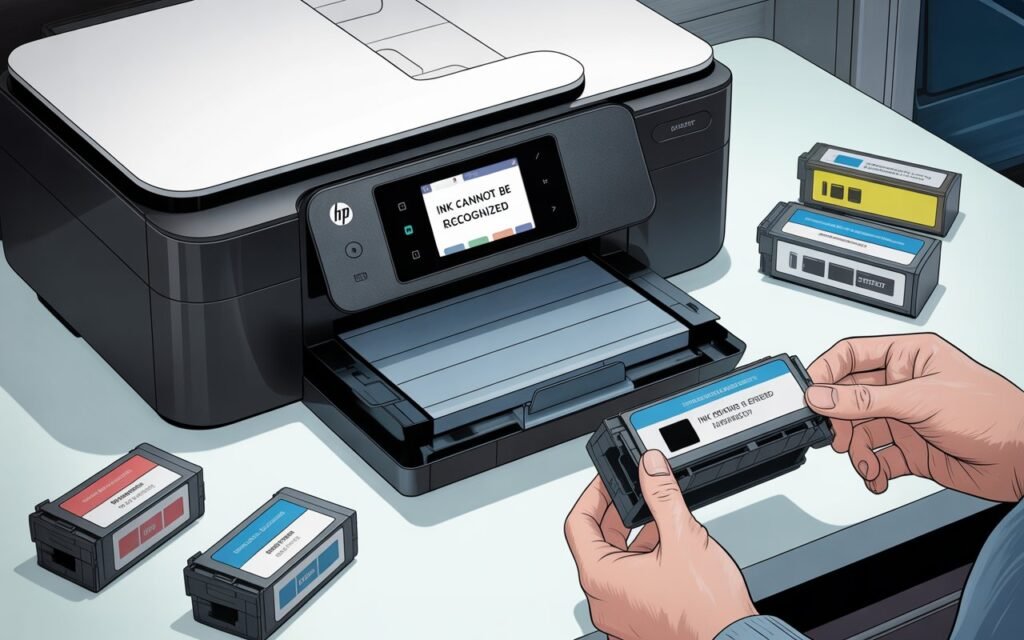
You installed a new ink cartridge, pressed print — and instead of a clean page, your HP printer flashed the dreaded message: “Ink Cannot Be Recognized.” Or maybe it said “Cartridge Problem,” “One or More Cartridges Appear to Be Missing or Damaged,” or simply refused to print anything at all.
If this sounds familiar, you are dealing with one of the most common HP printer complaints of 2026. The good news is that in the majority of cases, this is not a hardware failure and your printer is not ruined. The cause is almost always one of a small number of fixable issues — and this guide walks you through all six of them, in order from easiest to most advanced.
By the end of this article, your HP printer will either be printing again or you will know exactly why it is not and what your next step should be.
Read: How to Fix HP Printer Error Code 0x6100004a
Why Does HP Printer Say “Ink Cannot Be Recognized”?
Before jumping into fixes, it helps to understand what is actually triggering this message. Your HP printer communicates with each ink cartridge through a small electronic chip embedded on the cartridge itself. This chip transmits data about ink levels, cartridge type, and authenticity.
The “Ink Cannot Be Recognized” error appears when that communication breaks down. This can happen for several reasons:
- The chip on the cartridge is dirty, damaged, or poorly seated
- The cartridge was not fully clicked into place during installation
- HP’s latest firmware update changed the authentication requirements
- The cartridge is a third-party or refilled cartridge that no longer passes HP’s verification
- The printer’s internal cartridge contacts are dirty or corroded
- A genuinely defective cartridge — even from HP’s own lineup — came out of the box faulty
Each fix below targets one or more of these causes, starting with the simplest things you can try in under two minutes.
Fix 1: Remove, Wait, and Reinstall the Cartridge
This sounds almost too simple, but it resolves the error for a surprisingly large number of users. When a cartridge is inserted too quickly or at a slight angle, the chip does not make clean contact with the printer’s electrical contacts — and the printer throws a recognition error.
Here is how to do it properly:
- Open your HP printer’s ink access door and wait for the carriage to move to the center.
- Press down gently on the cartridge and pull it straight out. Do not rock it side to side.
- Once the cartridge is out, leave the printer open and wait 60 full seconds. This allows the printer to reset its cartridge detection system.
- Before reinserting, look at the copper-colored contact strip on the bottom of the cartridge. If you see any fingerprints, dust, or smudges on it, move to Fix 2 before continuing.
- Reinsert the cartridge slowly and push firmly until you hear or feel a definite click. The cartridge should feel locked in place, not loose.
- Close the access door and wait for the printer to finish initializing before sending a test print.
If the error clears, you are done. If it comes back or never went away, move to Fix 2.
Fix 2: Clean the Cartridge Chip and Printer Contacts
Dirty contacts are one of the top causes of the “Ink Cannot Be Recognized” error — and one of the most overlooked. Ink residue, dust, and even skin oils from handling a cartridge can coat the chip and prevent a clean electrical signal.
What you will need:
- A lint-free cloth or a few cotton swabs
- Distilled water or isopropyl alcohol (90% or higher — do not use rubbing alcohol below 70%)
Cleaning the cartridge chip:
- Remove the cartridge from the printer.
- Locate the small copper or gold-colored chip on the front or bottom of the cartridge.
- Dampen a cotton swab or corner of a lint-free cloth with distilled water or isopropyl alcohol. It should be damp, not dripping.
- Gently wipe across the chip contacts in one direction. Do not scrub back and forth aggressively.
- Let the chip air dry completely — at least 60 seconds — before reinstalling.
Cleaning the printer’s cartridge contacts:
- Look inside the cartridge slot where the cartridge sits. You will see a set of small metal contacts or pins inside the printer.
- Using a fresh cotton swab lightly dampened with isopropyl alcohol, gently dab and wipe those contacts.
- Allow them to dry fully before inserting any cartridge.
After cleaning both surfaces, reinstall the cartridge and test. Many users who get the recognition error repeatedly find that this one step permanently solves it.
Fix 3: Restart the Printer Using a Full Power Reset
HP recommends a specific power reset process — not just pressing the power button — that clears temporary firmware glitches and resets the cartridge detection system. This is different from simply turning the printer off and on.
Follow these steps exactly:
- Make sure the printer is powered on and showing the error message.
- Press the power button to turn the printer off and wait for it to fully shut down.
- Once off, unplug the power cord from the back of the printer — not from the wall outlet, but from the printer itself.
- If the printer is connected to a power strip or surge protector, also unplug that from the wall.
- Wait 2 full minutes. This allows any residual charge to drain and the firmware to fully reset.
- Plug the power cord back into the printer first, then into the wall or power strip.
- Power the printer on and wait for it to complete its full startup sequence before checking for the error.
This reset clears many temporary recognition errors — particularly ones that appeared after a firmware update or after a print job was interrupted mid-cartridge installation.
Fix 4: Update or Roll Back HP Printer Firmware
Firmware — the software running inside your printer — is a double-edged sword when it comes to cartridge recognition errors in 2026. An outdated firmware version can sometimes struggle to recognize newer genuine cartridges. But a recent firmware update can block third-party or refilled cartridges that previously worked fine.
Understanding which situation you are in determines whether you need to update or roll back.
Scenario A — You are using HP genuine cartridges and getting the error:
An outdated firmware version may not recognize newer HP cartridge series. Updating firmware is the right move here.
To update HP firmware:
- Open the HP Smart app on your phone or computer and connect to your printer.
- Go to Printer Settings → Advanced Settings → Printer Maintenance → Update Firmware.
- Allow the update to install and the printer to restart.
Alternatively, visit HP’s support site, search for your exact printer model, and download the latest firmware manually.
Scenario B — You are using third-party, compatible, or refilled cartridges and the error started after a recent update:
A firmware update almost certainly added stricter cartridge authentication. Rolling back firmware is the right move here.
To roll back HP firmware:
- Go to HP’s support site and search for your printer model under Software, Drivers and Firmware.
- Look for an older firmware version — specifically one dated before the error started appearing.
- Download that version and install it manually through the printer’s firmware update tool.
- After rolling back, immediately go to Settings → Printer Updates → Automatic Updates and turn this OFF to prevent the printer from updating itself again overnight.
This is currently the single most effective long-term fix for users whose third-party cartridges stopped working after a 2026 HP firmware update.
Fix 5: Remove Protective Tape or Shipping Tabs (New Cartridges Only)
If you just unboxed a brand new cartridge and immediately got the “Ink Cannot Be Recognized” error, there is a good chance a small piece of plastic or tape is still attached that should have been removed before installation.
HP cartridges come with two types of protective packaging that must be fully removed:
Orange plastic pull tab: A small orange or clear plastic clip attached to the cartridge vent. This tab needs to be pulled off and discarded before installation. If left on, it blocks ink flow and can also interfere with the chip’s electrical contact.
Pink or orange tape over the ink nozzles: Some cartridge models have a strip of tape covering the print nozzle area on the bottom. This tape must be peeled off cleanly. Do not touch the exposed nozzle area with your fingers after removing the tape.
Protective cover on the chip contacts: Less common, but some cartridges also have a thin plastic film over the chip itself. Check carefully and peel it off if present.
After removing all protective materials, reinstall the cartridge and run a test print. This fix is responsible for a significant number of “brand new cartridge not recognized” reports each year — and it is an easy mistake to make given how small some of these tabs are.
Fix 6: Replace the Cartridge (Defective or Incompatible Cartridge)
If you have worked through all five fixes above and the error persists, the cartridge itself is likely the problem. This can happen in two different ways.
Scenario A — The cartridge is genuinely defective:
Even HP’s own genuine cartridges can come out of the box with a faulty chip or damaged contacts. This is relatively rare but it does happen. If you have a spare genuine HP cartridge available, install it to test whether the error clears. If it does, the original cartridge is defective and should be returned for a replacement or refund.
HP offers a cartridge replacement program. If you purchased the cartridge recently and have your receipt or order confirmation, contact HP Support or your point of purchase to request a replacement.
Scenario B — The cartridge is incompatible with your specific printer model:
Not all HP cartridges that look similar are interchangeable. The HP OfficeJet Pro 9125e, for example, uses a specific cartridge series, and installing a cartridge from a different series — even a genuine HP one — will trigger the recognition error.
Double-check the cartridge number printed on the cartridge packaging against the compatible cartridges listed for your specific printer model. You can find the correct cartridge numbers in your printer’s manual or on HP’s support site by entering your printer model number.
Scenario C — Third-party cartridge is permanently blocked by HP’s Dynamic Security:
If you are using a non-HP compatible cartridge and all other fixes have failed, HP’s Dynamic Security system may have permanently flagged that cartridge’s chip as unauthorized. In this case, your options are to source an updated third-party cartridge with a newer chip designed for 2026 firmware compatibility, roll back your firmware as described in Fix 4, or switch to genuine HP cartridges or an HP Instant Ink subscription.
Quick Troubleshooting Checklist
Before calling HP Support, work through this checklist to confirm you have covered every angle:
- Cartridge fully clicked in and seated correctly — not loose
- Chip on cartridge visually clean with no smudges or residue
- Printer contacts inside the cartridge slot cleaned with isopropyl alcohol
- Full power reset performed — unplugged from printer for 2 full minutes
- All protective tape and orange plastic tabs removed from new cartridge
- Correct cartridge number confirmed for your specific HP printer model
- Firmware checked — updated if using genuine cartridges, rolled back if using third-party
- Automatic firmware updates disabled to prevent future unplanned changes
- Tested with a different cartridge to isolate whether the cartridge or printer is the issue
If you have completed every item on this list and the error remains, your printer may have a hardware issue with its cartridge carriage contacts — and HP Support or an authorized service center will need to inspect it in person.
Frequently Asked Questions
Q: Why did HP printer say “Ink Cannot Be Recognized” suddenly when nothing changed?
The most common cause of a sudden recognition error when nothing has changed is a silent overnight firmware update from HP. These updates install automatically when your printer is connected to WiFi and can change how the printer authenticates cartridges without any notification. Check your firmware version under Settings → Printer Information to see if a recent update coincides with when the error started.
Q: Can I still print in black and white if only one color cartridge shows the error?
On most HP inkjet printers, the answer is no — or only temporarily. HP printers typically refuse to print at all if any cartridge is flagged as unrecognized, even if the affected cartridge is a color cartridge and you are printing a black-and-white document. Some older models allow limited black-only printing when a color cartridge is low or missing, but the recognition error usually triggers a complete print block.
Q: Is the “Ink Cannot Be Recognized” error the same as “Ink Level Cannot Be Determined”?
These are related but different errors. “Ink Cannot Be Recognized” means the printer cannot verify the cartridge’s identity at all. “Ink Level Cannot Be Determined” typically means the printer recognizes the cartridge but cannot read the ink level data from its chip — a common issue with refilled cartridges where the chip has not been reset. The fixes in this article apply primarily to the recognition error, though Fixes 1, 2, and 3 can help with both.
Q: Does HP’s warranty cover this error?
If you are using genuine HP cartridges and getting a recognition error, and the printer is still under warranty, yes — HP should cover repair or replacement. If you are using third-party cartridges, HP may use that as grounds to void the warranty claim, though this is legally disputed in several countries. Always document the error message and which cartridge was installed when you contact HP Support.
Q: How do I find out my HP printer’s exact firmware version?
On the printer’s touchscreen, go to Settings (the gear icon) → Printer Information → Printer Status Report and print or view the report. The firmware version will be listed clearly. You can also find it in the HP Smart app under your printer’s details page.
Q: Will cleaning the cartridge contacts with water damage anything?
A small amount of distilled water on a cotton swab is safe for cleaning cartridge contacts. The key is to use as little moisture as possible and to let everything dry completely before reinstalling. Never use tap water, as minerals in tap water can leave deposits. Isopropyl alcohol at 90% or higher is actually preferable to water because it evaporates quickly and leaves no residue.
When to Call HP Support
You should contact HP Support directly if:
- You have worked through all six fixes and the error persists
- The error appears with multiple different cartridges, including genuine HP ones
- The printer shows the error even with an empty cartridge slot (which could indicate a faulty sensor)
- The printer is under warranty and you believe the hardware is at fault
- You see physical damage inside the cartridge slot or on the carriage rail
HP’s support line and live chat are available through HP’s official support site. When you contact them, have your printer model number, serial number, and firmware version ready — this speeds up the troubleshooting process significantly.
Conclusion
The “Ink Cannot Be Recognized” error on HP printers in 2026 is frustrating precisely because it stops you from doing something as basic as printing — but it is almost never a sign that your printer is permanently broken.
Working through the six fixes in this guide in order gives you the best chance of resolving the issue quickly: start with the simple reinstall and cleaning steps, run a full power reset, then look at firmware if the basic steps do not help. If you are using third-party cartridges and the error started after a firmware update, rolling back your firmware and disabling automatic updates is the most effective long-term solution available right now.
The most important habit you can build going forward is turning off automatic firmware updates. HP’s silent updates are the single biggest cause of cartridge recognition errors appearing out of nowhere in 2026, and staying in control of your firmware version means you stay in control of what ink your printer accepts.
If one of these fixes worked for you — or if you found another solution that is not covered here — share it in the comments. Real user experiences help everyone dealing with the same problem find their answer faster.