
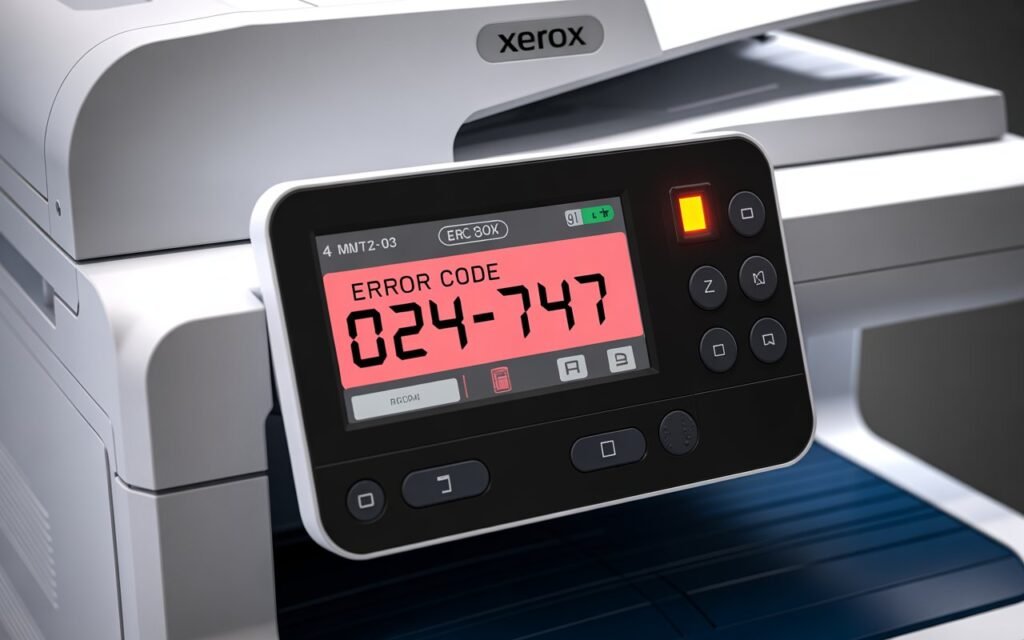
If your Xerox printer suddenly stopped working and the control panel is flashing error code 024-747, you are not alone. This is one of the more frustrating Xerox errors because the printer looks fine on the outside — no paper jams, no empty cartridges — yet it simply refuses to print. The good news? In most cases, you can fix it yourself at home without calling a repair shop.
In this guide, we will walk you through everything you need to know about Xerox error 024-747 — what it means, why it happens, and exactly how to clear it step by step. We have written this in plain language so you can follow along even if you are not very tech-savvy.
ⓘ Quick Answer — What Is Xerox Error Code 024-747?
Xerox error code 024-747 is a communication error between the printer’s main controller board and the print engine. It usually means the printer cannot complete an internal data transfer during a print job. Common triggers include corrupted print jobs, outdated firmware, loose cable connections, or a temporary software glitch.
What Does Xerox Error Code 024-747 Mean?
Before jumping into the fixes, it helps to understand what this error is actually telling you. Xerox error 024-747 falls under the category of internal communication faults. Specifically, it means the print engine — the mechanical part that physically puts ink on paper — lost communication with the main logic board that controls it.
Think of it like your brain sending a signal to your hand, but the hand never receives it. The job gets stuck, the printer freezes, and you see that error code on the screen.
This error is common across multiple Xerox models including the WorkCentre series, VersaLink series, and AltaLink series. It can appear during printing, scanning, or even during the startup sequence.
What Causes Xerox Error Code 024-747?
Understanding the cause helps you pick the right fix faster. Here are the most common reasons this error shows up:
- A corrupted or stuck print job in the queue that the printer cannot process
- Outdated or corrupted printer firmware that needs to be updated
- A loose or damaged internal cable connecting the controller board to the print engine
- A software conflict caused by recently installed printer drivers
- Overheating of internal components after long printing sessions
- A temporary memory glitch that requires a full power cycle to clear
- Network communication issues if the printer is connected via Ethernet or Wi-Fi
How to Fix Xerox Error Code 024-747 — 7 Solutions
Work through these solutions in order. Most users find the fix within the first three steps. Start simple before moving to more advanced options.
Fix 1: Perform a Full Power Cycle (The Most Effective First Step)
This sounds almost too simple, but a proper power cycle clears temporary memory errors and resets the communication between internal components. The key word here is proper — just pressing the power button is not enough.
- Press the power button on your Xerox printer to turn it off.
- Wait for the printer to fully shut down — all lights should be off.
- Unplug the power cord from the wall outlet completely.
- Wait for a full 60 seconds. This gives the capacitors time to drain.
- Plug the power cord back in directly to a wall outlet (skip the surge protector or power strip for now).
- Turn the printer back on and wait for it to complete its startup cycle.
If the 024-747 error was caused by a temporary glitch or memory issue, it should be gone after this step.
Fix 2: Clear All Pending Print Jobs from the Queue
A corrupted print job stuck in the queue is one of the most common triggers for this error. Here is how to clear it on Windows:
- Press the Windows key and type Services, then open the Services app.
- Scroll down and find the service called Print Spooler.
- Right-click on Print Spooler and select Stop.
- Open File Explorer and navigate to:
C:\Windows\System32\spool\PRINTERS - Delete all files inside that folder (do not delete the folder itself).
- Go back to Services, right-click Print Spooler again, and select Start.
- Try printing a test page to see if the error is gone.
On Mac: Go to System Settings → Printers and Scanners → select your Xerox printer → click the printer queue → delete all pending jobs. Then restart your Mac and test again.
Fix 3: Update Your Xerox Printer Firmware
Outdated firmware is a frequent cause of error 024-747, especially after operating system updates. Xerox regularly releases firmware patches that fix exactly these kinds of communication errors.
- On your Xerox printer’s control panel, press the Home button.
- Go to Device → Software Update → select Check Now.
- If an update is available, follow the on-screen instructions to install it.
- Once the update finishes, the printer will restart automatically.
Alternatively, you can download the latest firmware directly from the Xerox official support website by searching for your specific model number. Always use the official Xerox site to avoid downloading incorrect firmware.
Fix 4: Reinstall the Printer Driver on Your Computer
A corrupted or outdated driver on your computer can cause communication errors that trigger 024-747. Reinstalling gives you a clean slate.
- On Windows: Go to Settings → Bluetooth and Devices → Printers and Scanners.
- Find your Xerox printer, click on it, and select Remove.
- Open Device Manager (press Windows + X and select it from the menu).
- Expand the Print queues section, right-click your Xerox printer, and select Uninstall.
- Restart your computer.
- After the restart, download the latest driver for your specific Xerox model from the official Xerox support page.
- Install the driver and run a test print.
Fix 5: Check and Reseat Internal Cable Connections
If none of the above software fixes worked, there may be a loose internal cable. This is more common than you might think, especially if the printer was recently moved or bumped.
- Power off and unplug the printer completely.
- Open the rear access panel of your Xerox printer (refer to your model’s service manual for the exact location).
- Look for any ribbon cables or data cables that appear loose or partially disconnected.
- Gently press each connector firmly into its socket until you feel or hear a small click.
- Close the panel, plug the printer back in, and power it on.
- Run a test print to see if the error has cleared.
Fix 6: Reset the Printer to Factory Defaults
If you have tried everything above and the error keeps coming back, a factory reset can clear deep-seated software corruption. Note that this will erase all custom settings, stored jobs, and network configurations — so make a note of your settings before proceeding.
- On the Xerox control panel, press the Home button.
- Navigate to Device → Resets.
- Select Reset to Factory Defaults and confirm.
- The printer will restart and go through its initial setup sequence.
- Reconfigure your Wi-Fi or network connection and reinstall on your computer.
Fix 7: Contact Remote Printer Support
If you have worked through all six fixes and error 024-747 is still showing up, it is time to get a professional involved. At this point, the issue is most likely a hardware fault — either a failing controller board or a damaged print engine component — that requires a trained technician to diagnose and repair.
Rather than packing up your printer and hauling it to a service center, consider remote printer support. A technician can connect to your computer remotely, run diagnostics, and often resolve the issue in a single session from the comfort of your home. You can also explore our full Xerox printer setup and support guide for additional help with your device.
📞 Need Help Right Now?
If you are stuck and the error keeps coming back, our certified printer support team at PrintSetupGuide.com is ready to help. We offer fast remote support for all Xerox printer models — no appointment needed, no waiting in line.
📞 Call us: 1-800-319-5804
Frequently Asked Questions About Xerox Error Code 024-747
How long does it take to fix Xerox error 024-747?
In most cases, fixes 1 through 3 — power cycling, clearing the print queue, and updating firmware — take less than 15 minutes total. If you need to reinstall the driver or check internal cables, budget about 30 to 45 minutes.
Will a factory reset delete all my stored documents?
Yes, a factory reset will erase stored print jobs, personal address book entries, custom app settings, and saved network configurations. It will not affect documents saved on your connected computer or server.
Can error 024-747 damage my printer permanently?
No. This error is a communication fault, not a sign of physical damage. Left unaddressed for long periods, it can cause wear on certain components due to repeated failed startup attempts, but acting on it promptly using the fixes above carries no risk of permanent damage.
My printer shows 024-747 every time it starts up. What does that mean?
If the error appears consistently at startup rather than during a print job, it often points to a firmware issue or a hardware fault with the controller board. Try Fix 3 (firmware update) first. If that does not resolve it, contact a technician — repeated startup failures can indicate a component that needs replacement.
Does this error void my Xerox warranty?
No, the error itself does not void your warranty. However, if you open the printer and attempt to repair internal components yourself while the printer is still under warranty, that could void the warranty depending on your service agreement. Always check your warranty terms before opening the device.
How to Prevent Xerox Error 024-747 in the Future
A little maintenance goes a long way when it comes to keeping your Xerox printer running smoothly. Here are a few habits that help prevent this error from coming back:
- Keep your printer firmware updated. Set a reminder to check for updates every 2 to 3 months.
- Always clear print jobs before turning the printer off to avoid corrupted queue files.
- Use a reliable power source. Voltage fluctuations can cause communication errors inside the printer.
- Give the printer room to breathe. Poor ventilation leads to overheating, which causes internal communication failures.
- Restart your printer completely once a week if it runs all day. This clears accumulated memory issues.
- Keep your printer drivers up to date, especially after major operating system updates.
Quick Fix Summary: Xerox Error Code 024-747
| # | Fix | Time Needed | Difficulty |
|---|---|---|---|
| 1 | Full power cycle (unplug for 60 sec) | 2 minutes | 🟩 Very Easy |
| 2 | Clear the print queue / spooler | 5 minutes | 🟩 Easy |
| 3 | Update Xerox firmware | 10 minutes | 🟩 Easy |
| 4 | Reinstall printer driver | 15 minutes | 🟠 Moderate |
| 5 | Check and reseat internal cables | 20–30 minutes | 🔴 Advanced |
| 6 | Factory reset the printer | 15 minutes | 🟠 Moderate |
| 7 | Call remote printer support | Under 1 hour | 🟩 No skill needed |
Final Thoughts
Xerox error code 024-747 can feel alarming when it first appears, but as you have seen, the majority of cases are resolved with basic troubleshooting steps that anyone can do at home. Start with the power cycle and print queue cleanup — these alone fix the problem in roughly 60% of cases.
If you have been through all seven fixes and the error keeps coming back, do not keep guessing. A trained technician can run a full remote diagnostic in far less time than most people spend googling solutions, and it saves your printer from unnecessary wear caused by repeated failed attempts.
We hope this guide helped you get back to printing without any more stress. If you found it useful, share it with a colleague or bookmark it for future reference — Xerox errors like this have a habit of returning if the root cause is not addressed properly.
Still Seeing Error 024-747? We Can Fix It Remotely.
Our certified Xerox support technicians are available now. No appointment, no service center trip — just fast, reliable remote help.
Disclaimer: PrintSetupGuide.com is an independent third-party support provider. We are not affiliated with or endorsed by Xerox Corporation. All brand names and trademarks mentioned are the property of their respective owners and are referenced here for informational purposes only. Our services are paid remote support solutions.