This guide is for informational purposes only. We are not affiliated with any brand mentioned.
▶ Quick Summary — Ricoh SC 260 Error Code
- What SC 260 means: On most Ricoh SP series models it is a registration motor or paper feed drive error — the paper feed and registration system failed to complete its cycle within the expected timeframe
- Model variation is important: SC 260 covers different sub-systems depending on your Ricoh model generation — on some older Aficio models it relates to the main motor or laser unit; always confirm against your model’s service documentation
- Most common physical cause: Worn, glazed, or contaminated paper feed rollers or registration rollers causing the paper to slip or stall, which the motor sensor reads as a drive failure
- First step: Full 60-second power cycle — clears transient SC 260 errors caused by a paper stall or mid-job power interruption
- Most accessible fix: Clean the pick-up, feed, and registration rollers with a damp lint-free cloth; replace if glazed or worn through
- Reset: SC 260 is latched — requires SP mode reset after resolving the physical cause, not just a power cycle
- When to call a technician: If the error returns after roller cleaning and the registration motor or sensor needs to be tested or replaced
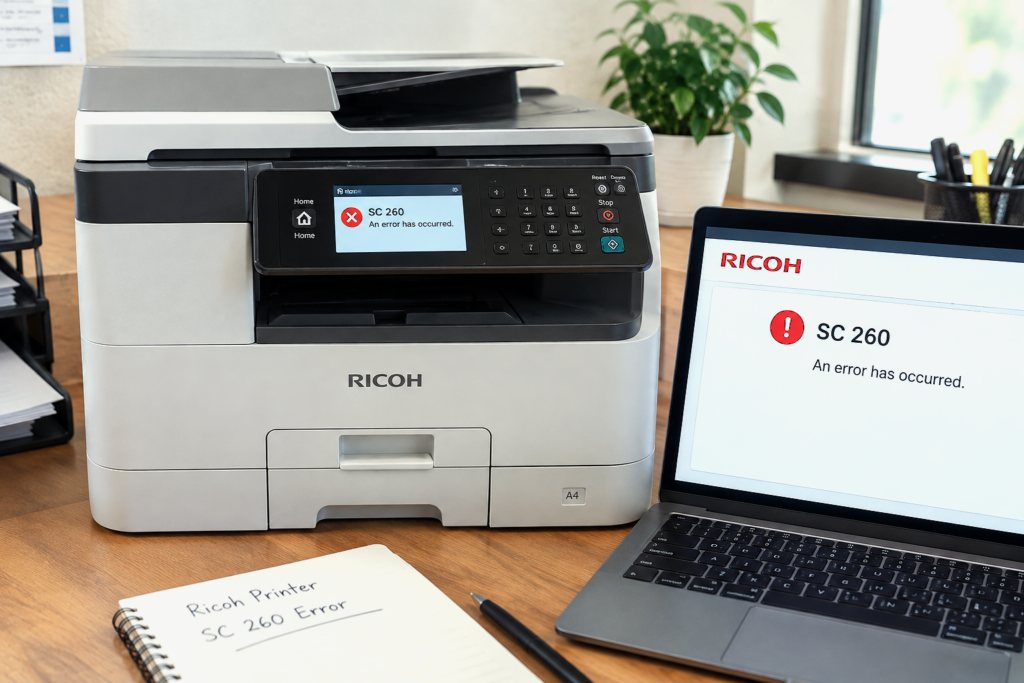
SC 260 is on your Ricoh’s display and the machine has stopped completely. You might have noticed paper feed problems in the days or weeks before this — occasional misfeeds, paper jams at the registration point, or sheets entering slightly skewed. Or it could have appeared suddenly mid-job with no prior warning. Either way, SC 260 is a well-defined code that follows a clear diagnostic path, and for the majority of users the fix involves cleaning or replacing the rollers responsible for feeding paper into the print path.
This guide explains what SC 260 means across different Ricoh model generations, what causes it, and how to work through the fix — from a straightforward power cycle and roller clean all the way to motor-level inspection. If you’re also dealing with a charge system SC error on the same or a different Ricoh unit, our guide on Ricoh SC 302 error code covers that fault separately.
What Does Ricoh SC 260 Mean?
SC 260 belongs to Ricoh’s 2xx error code series. The 2xx range covers several different sub-systems depending on the model generation — including laser writing unit errors on older Aficio series machines, and registration and paper transport motor errors on SP series and many current production models.
On Ricoh SP series printers (including SP 4510, SP 5300, SP 5310, and similar models), SC 260 is associated with a registration motor error — the motor or sensor responsible for driving the paper through the registration roller assembly did not complete its expected operation within the allowed timeframe.
On older Ricoh Aficio and MP series models, SC 260 can relate to a main motor drive fault or a laser writing unit error depending on the specific sub-code. The 2xx series meaning genuinely varies between product generations, which is why checking the service manual for your exact model is always recommended when the error first appears.
Across all variants, the common thread is a drive system failure — a motor that didn’t complete its movement, a sensor that didn’t confirm the expected position, or a mechanical component (roller, gear, or belt) that caused the drive chain to stall.
In practical terms: When SC 260 appears alongside paper feed problems, misfeeds, or registration-area jams, the paper feed and registration roller system is almost certainly the starting point for diagnosis. Worn or contaminated rollers are the most accessible and most common cause of a registration drive fault — and cleaning or replacing them resolves SC 260 in a significant number of cases without requiring any board-level repair.
Understanding the Paper Feed and Registration System
Before working through fixes, a brief explanation of how the paper feed path works on most Ricoh laser models is useful — it clarifies exactly which components are involved and why they trigger SC 260 when they fail.
When a print job is sent, paper goes through three sequential stages before it reaches the imaging area:
- Pick-up roller — the first roller to contact the paper stack, it lifts and separates a single sheet from the tray
- Feed roller and separation roller — these work together to advance the sheet forward while preventing double-feeds; the separation roller holds back any additional sheets that the pick-up may have grabbed
- Registration rollers — this pair of rollers receives the sheet and holds it momentarily, aligning it squarely before releasing it into the fusing path at precisely the right moment. A sensor at the registration point confirms the paper arrived on time
SC 260 is triggered when the motor driving the registration rollers detects that the paper didn’t arrive at the registration point when expected, didn’t pass through cleanly, or the motor itself encountered resistance it couldn’t overcome. Worn rollers that slip rather than grip paper, glazed rollers with a shiny surface that no longer has adequate traction, or contaminated rollers coated in paper dust and residue are the most common physical reasons this detection fails.
Common Causes of SC 260 on Ricoh Printers
- Worn or glazed pick-up rollers — the rubber compound on pick-up rollers degrades with use, developing a hard, shiny surface that can’t grip paper reliably. The roller spins but the paper doesn’t advance, and the registration sensor never receives the sheet
- Contaminated feed or registration rollers — paper dust, fine debris, and occasionally toner particles accumulate on roller surfaces and fill in the rubber texture, reducing grip
- Paper debris in the registration area — a torn scrap from a previous jam lodged near the registration rollers can obstruct paper passage and cause a motor stall that registers as SC 260
- Incorrect paper type or weight in the tray — paper heavier than the tray’s rated capacity, or damp paper that sheets together, creates resistance the rollers and motor can’t overcome cleanly
- Tray not inserted fully — a paper tray that isn’t fully seated can misalign the pick-up roller’s contact point with the paper stack, causing intermittent pick-up failure
- Registration motor wiring connection loose — the electrical connection between the registration motor and the main board can develop a poor contact over time, particularly after the machine has been moved
- Defective registration sensor — the sensor that confirms paper has arrived at the registration point may have failed or been contaminated, triggering SC 260 even when the mechanical components are functioning
- Main motor or drive board fault — less common but possible on older or high-mileage machines; the motor that drives the entire paper transport mechanism may have developed an intermittent fault
What to Do First
Step 1: Full Power Cycle
A complete power cycle is the correct starting point — not just pressing the power button, but pulling the plug from the wall. SC 260 can appear from a transient stall caused by a one-off paper feed hesitation or a brief power event during a print job. A full discharge of internal capacitors clears this transient state.
- Press the main power switch to off.
- Unplug the power cord from the wall outlet completely.
- Remove the paper from all trays.
- Wait 60 seconds.
- Reload the paper, reconnect, and power on.
- Allow the machine to complete its full startup cycle and observe whether SC 260 returns.
If the error doesn’t reappear, the fault was transient. Monitor the machine over the next several print jobs. If it returns — even after appearing to clear — a physical cause needs investigation.
Step 2: Clear Any Paper From the Feed Path
Open all covers that provide access to the paper path — front cover, rear cover, and any multi-bypass tray area — and inspect for paper fragments, torn scraps, or debris. Run a flashlight along the feed path from the tray entry point through to the registration area. Even a small scrap at the registration rollers is enough to cause SC 260 on the next startup.
How to Fix Ricoh SC 260 — Step-by-Step
Fix 1: Clean the Pick-Up, Feed, and Registration Rollers
This is the most commonly effective fix for SC 260 linked to a paper feed drive fault, and it’s accessible on most Ricoh models without major disassembly.
- Power off and unplug the machine.
- Remove the paper tray completely.
- Look into the tray cavity with a flashlight — you’ll see the pick-up roller (the rubber roller that contacts the paper when the tray is inserted) hanging slightly down from the mechanism above.
- Using a lint-free cloth lightly dampened with water — or isopropyl alcohol (70% or higher) for heavier residue — gently wipe the rubber surface of the pick-up roller, rotating it by hand as you clean to reach the full circumference. The roller should feel slightly tacky to the touch after cleaning. If it still feels hard and shiny, the rubber has glazed and cleaning won’t restore adequate grip — replacement is needed.
- Access the feed and separation rollers further along the paper path — on most models these are visible when the front cover is opened or when a lower access panel is removed. Clean these with the same method.
- Locate the registration rollers — on most Ricoh SP and MP models, these are accessible through the front cover in the lower paper path area. They’re typically a pair of rubber rollers that the paper passes between just before entering the imaging unit. Clean both rollers thoroughly.
- Allow all surfaces to dry for 2–3 minutes before reinstalling the tray.
- Reload the paper and power on the machine.
Cleaning agent caution: Use water or isopropyl alcohol only on the rubber roller surfaces. Do not use acetone, thinners, or any solvent — these dissolve the rubber compound and permanently damage roller grip. Also avoid getting cleaning liquid into the motor, sensor, or electrical connector areas adjacent to the rollers.
Fix 2: Inspect and Clean the Registration Sensor
The registration sensor — a small optical or mechanical sensor that detects when paper arrives at the registration rollers — can become contaminated with paper dust and fine debris, causing it to misread or fail to detect paper passage. SC 260 can result from the motor timing out because the sensor never confirmed paper arrival, even when paper did pass through.
- With the machine powered off and unplugged, open the front cover and any lower access panels that expose the registration area.
- Locate the registration sensor — it’s typically a small black component with a narrow slot or window positioned near the registration rollers, with a thin wire harness connecting it to the main board.
- Using a dry cotton swab, gently clean the sensor face or slot opening. Blow any loose dust clear with a single careful breath — do not use compressed air canisters near the sensor as the force can damage the sensor flag (the small movable arm inside optical sensors).
- Also check that the sensor’s wire connector is fully seated at both ends — disconnect and firmly reconnect it.
- Close the covers, power on, and test.
Fix 3: Check Paper Quality and Tray Loading
SC 260 that appears only with certain paper or certain trays sometimes points to a paper-related cause rather than a roller failure. This is worth checking before committing to any component replacement.
- Fan the paper stack before loading — sheets that have absorbed moisture or been stored incorrectly stick together, causing the separation roller to fail to separate them, which stalls the feed mechanism.
- Confirm the paper weight is within spec for the tray being used. Ricoh tray ratings are printed in the user manual and often on the tray label itself. Media heavier than the rated maximum creates resistance the rollers can’t reliably overcome.
- Confirm the paper guides in the tray are correctly set to the paper size — guides that press too tightly against the stack cause the pick-up roller to fight friction as it tries to lift a sheet. Guides that are too loose allow paper to skew, causing registration failures.
- Try a different paper tray if your machine has more than one. If SC 260 only appears when printing from one specific tray, the pick-up roller for that tray is the likely cause.
Fix 4: Replace the Pick-Up Roller (If Cleaning Doesn’t Restore Grip)
Pick-up rollers are consumable components with a finite lifespan — typically rated between 60,000 and 100,000 pages depending on the model. A roller that has glazed will have a shiny, hard surface that no amount of cleaning can restore. If cleaning removed obvious contamination but the surface still feels hard and slippery rather than slightly tacky, replacement is the correct next step.
When replacing the pick-up roller:
- Confirm the correct part number for your specific Ricoh model — pick-up rollers are not universal across the SP, MP, and Aficio range
- Replace the feed roller and separation roller at the same time if they show similar glazing — these three rollers work as a set and replacing only one leaves mismatched grip levels that can still cause feed problems
- Handle replacement rollers by their shaft ends or inner hub only — oils from skin contact on the rubber surface immediately reduce grip
- After fitting new rollers, run a test page before attempting an SP mode reset to confirm the mechanical fix resolved the issue
Fix 5: Inspect the Registration Motor and Wiring
If cleaning the rollers and sensor hasn’t resolved SC 260, the registration motor or its wiring connection is the next component to inspect. A motor that has developed high resistance, a failing winding, or a loose connector will stall under load and trigger the error.
- With the machine powered off and unplugged, access the registration motor — on most Ricoh models this requires removing the rear cover panel. Refer to your model’s service manual for the exact location.
- Locate the motor’s wire harness connector and disconnect it completely. Inspect the connector pins for corrosion, bending, or loose crimping. Clean any corrosion with a dry cotton swab and reconnect firmly.
- With the connector reconnected, attempt a power cycle and test print to determine whether the connection was the fault.
- If SC 260 persists and you have access to a multimeter, testing the motor resistance across its terminals against the specification in your model’s service manual will confirm whether the motor winding itself has failed. A reading significantly outside the specified range indicates a failed motor that needs replacement.
Note on main motor vs registration motor: On some older Aficio models where SC 260 relates to a main motor error rather than a registration-specific fault, the motor involved is the large drive motor at the rear of the machine rather than the smaller registration motor. If your model’s service documentation shows SC 260 as a main motor error, the inspection above applies to the main motor and its connector instead.
Fix 6: Reset SC 260 via SP Mode
SC 260, like most Ricoh SC codes, is latched — it remains stored in NVRAM and the machine will not resume operation until it is explicitly cleared through SP mode. A power cycle alone will not remove it once it has been recorded.
Standard SP mode reset sequence for most Ricoh SP, MP, and IM series:
- With the machine powered on and displaying SC 260, press the Clear Mode button (yellow key).
- Enter 1, 0, 7 on the numeric keypad.
- Press and hold the Clear/Stop key for approximately 3 seconds until the SP menu appears on the display.
- Select Copier SP on the touchscreen.
- Navigate to SP 5810, sub-code 02.
- Press 1 (or Execute / OK depending on model) to execute the reset.
- Turn the main power switch off, wait 10 seconds, then power back on.
- Allow the full startup cycle to complete and confirm SC 260 does not reappear.
Reset only after fixing: Clearing SC 260 via SP mode without first resolving the underlying physical cause will result in the error returning — sometimes on the very next print job. Always confirm the roller cleaning, sensor check, or connector reseating has been completed before attempting the reset. A reset that holds is confirmation the physical fix was successful.
Tips to Prevent SC 260 From Recurring
- Include roller cleaning in every maintenance visit. The pick-up, feed, and registration rollers should be wiped down as part of any toner replacement or drum unit service — it takes under five minutes and prevents the gradual contamination buildup that leads to SC 260.
- Replace rollers proactively at their rated page count. Ricoh provides roller replacement schedules in the machine’s user guide or service documentation. Scheduling replacement before rollers fail avoids both SC 260 and the paper jams that typically precede it.
- Store paper correctly. Paper that has absorbed humidity feeds poorly and increases roller wear. Store paper in its original packaging in a climate-controlled environment and use it within a reasonable period of opening.
- Clear paper jams in the direction of paper travel. Forcing jammed paper backwards through the feed path tears sheets and deposits fragments near the registration rollers that contribute to future SC 260 occurrences.
- Confirm the paper tray is fully inserted after any service. A tray that’s even slightly misaligned mispositions the paper stack under the pick-up roller, creating the feed inconsistency that triggers the error.
When to Check Ricoh’s Official Support
If SC 260 persists after roller cleaning, sensor cleaning, connector inspection, and an SP mode reset, the registration motor or main motor drive board likely needs to be tested and potentially replaced. These are repairs that require service manual access, multimeter testing, and in many cases partial machine disassembly beyond what most users are comfortable with.
Ricoh’s official support website provides model-specific service documentation, including component part numbers for registration motors, roller replacement kits, and sensor assemblies for both current and legacy models. Entering your exact model name surfaces any published technical notes related to SC 260 and paper feed errors specific to your device.
Wrapping Up
SC 260 points to a drive failure in the paper feed and registration system — and in the majority of cases, the physical cause is something as approachable as a set of worn or contaminated rollers. Cleaning the pick-up, feed, and registration rollers resolves the error for most users without any component replacement. When roller wear has gone past cleaning, replacing the roller set before attempting the SP mode reset gives the machine everything it needs to function cleanly.
Work through the fixes in order, confirm the physical cause has been addressed before clearing the code, and monitor the machine over the next several print jobs to verify the fix has held. The hardware supporting paper feed is predictable and maintainable — SC 260 is rarely a sign of something more serious unless the motor or sensor itself has failed.
Frequently Asked Questions
What does Ricoh SC 260 mean?
SC 260 belongs to Ricoh’s 2xx error code series and relates to a drive or motor fault in the paper feed and registration system on most current Ricoh SP and MP series models. On these models, it typically indicates that the registration motor or the paper feed drive system failed to complete its expected operation — either because a sensor didn’t detect paper arriving at the registration point on time, or because the motor encountered resistance it couldn’t overcome. On older Aficio series models, SC 260 can refer to a main motor or laser unit fault depending on the sub-code — always check the service documentation for your specific model to confirm the exact sub-system involved.
Can I clear SC 260 by just turning the printer off and on?
No. Like most Ricoh SC codes, SC 260 is latched — it is stored in NVRAM and persists through power cycles until it is explicitly reset through SP mode. The standard reset sequence (Clear Mode → 107 → hold Clear/Stop → SP 5810-02) clears the stored code, but this should only be done after the underlying physical cause has been addressed. Clearing the code without fixing the cause will result in SC 260 returning on the next print attempt.
Why are my paper feed rollers causing an SC error code rather than just a paper jam?
Paper jams and SC codes from roller failures are part of the same problem spectrum, just at different severity levels. Minor roller wear causes intermittent misfeeds and jams. Significant roller deterioration causes the registration drive motor to stall or time out — because paper isn’t arriving when expected or isn’t passing through cleanly — which the machine escalates to a locked SC code to prevent repeated failed attempts that could cause further damage. SC 260 is essentially the machine saying the feed system failed in a way that exceeded its tolerance for simple jam recovery.
How do I know if the pick-up roller needs to be replaced rather than just cleaned?
After cleaning, run your finger along the rubber surface of the roller. A healthy roller should feel slightly tacky or grippy — similar to a new rubber eraser. A roller that needs replacement feels hard, smooth, and slippery even after cleaning, with a visibly shiny surface rather than the matte texture of the original rubber. On very worn rollers you may also see cracks or flat spots on the rubber surface. If cleaning doesn’t restore a noticeably grippy feel, the rubber compound has glazed beyond recovery and replacement is the correct next step.
SC 260 appears only when printing from one specific tray — what does that mean?
A tray-specific SC 260 strongly points to the pick-up roller for that particular tray. Most Ricoh multifunction models have separate pick-up rollers for each tray, and wear happens at different rates depending on which tray sees heavier use. Cleaning and if necessary replacing the pick-up roller for the affected tray specifically, rather than all rollers, is the targeted fix. Also check that the tray itself is fully and correctly inserted — a tray that’s even slightly misaligned mispositions the paper under the pick-up roller contact point.
Is SC 260 a serious error or can I fix it myself?
In most cases SC 260 is fixable without a technician — roller cleaning and an SP mode reset after the fix resolve it for the majority of users. It becomes a technician-level repair when the registration motor has failed (requiring motor testing and replacement), when the main motor drive board is defective, or when the registration sensor has physically failed. These components require service manual access and multimeter testing to diagnose correctly. If cleaning and basic inspection don’t hold the fix, that’s the point at which involving a qualified Ricoh service technician is the practical choice.
Disclaimer: This article is provided for informational and educational purposes only. The fixes and procedures described are based on general knowledge of Ricoh printer paper feed systems and publicly reported technical experiences. SC code meanings can vary between Ricoh product generations — always consult the service documentation for your specific model before replacing any components. We are not affiliated with Ricoh Company Ltd. Results may vary depending on your printer model, firmware version, and component condition. If the machine is under service contract, contact your authorised service provider before attempting any internal repairs.
Ricoh Printer SC 260 Error Code- Feed Roller and Registration Fix Guide