
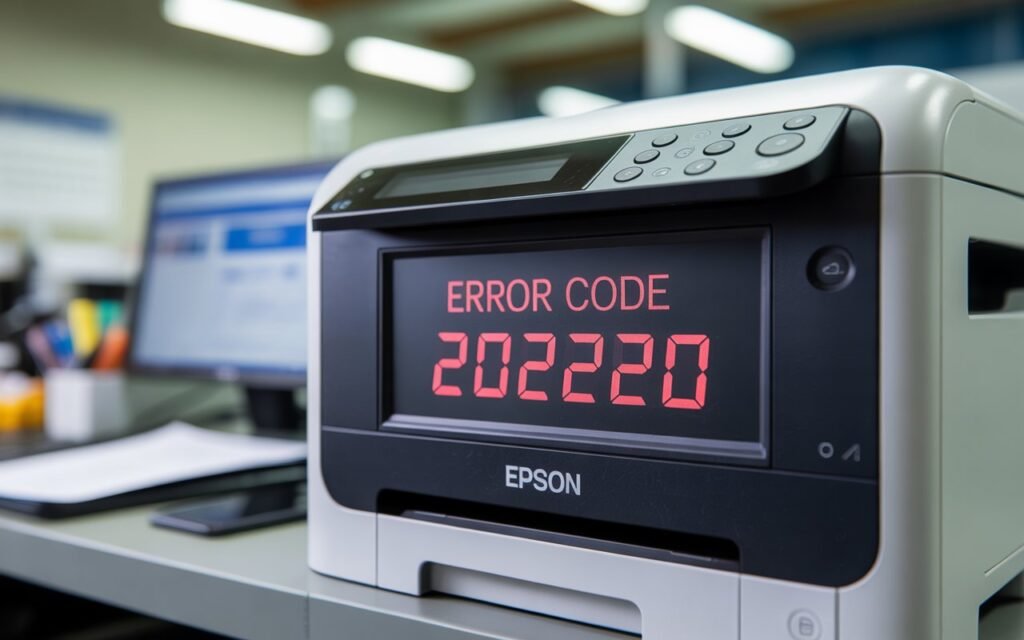
If your Epson printer just showed you the error code 202620 during a wireless setup or network connection attempt, you’ve landed in exactly the right place.
This error pops up more than most people realize — especially on Epson EcoTank and WorkForce models — and it almost always has to do with a WiFi connection problem during the initial setup or after a router/network change. The frustrating part? The error doesn’t always tell you why the connection failed. It just stops everything and leaves you stuck.
The good news is this: error 202620 is almost always fixable without calling a technician. I’ve put together this complete troubleshooting guide to walk you through every possible cause and fix, in plain English — no tech jargon, no guesswork.
Whether you’re setting up a brand new Epson printer, reconnecting after switching routers, or dealing with a sudden drop after a software update, this guide has your answer.
Let’s get into it.
Read: How to Fix Epson Printer Error Code 00041
What Is Epson Error Code 202620?
The Epson error code 202620 is a wireless network connection error. It typically appears during the WiFi setup process when the printer is unable to successfully communicate with or connect to your home or office wireless network.
In simple terms: your printer tried to join your WiFi and something went wrong in the handshake between the printer and your router.
You’ll usually see this error when:
- Setting up an Epson printer for the first time using the Epson Setup Navi or Epson Smart Panel app
- Reconnecting the printer after changing your WiFi router or internet service provider
- Trying to connect after a firmware or Windows update that reset network settings
- Switching from a 5GHz WiFi band to a 2.4GHz band (or vice versa)
This error is most commonly reported on:
- Epson EcoTank ET-2720, ET-2803, ET-3850, ET-4850
- Epson WorkForce WF-2850, WF-2930, WF-3820
- Epson Expression XP-4100, XP-4200 series
But the fix process is the same across all models.
What Causes Epson Error Code 202620?
Understanding the root cause helps you fix it faster and prevent it from coming back. Here are the most common reasons this error occurs:
1. Wrong WiFi Password Entered
This is the number one cause. WiFi passwords are case-sensitive, and even one wrong character will trigger this error.
2. Printer Connecting to 5GHz Band Instead of 2.4GHz
Epson printers only support 2.4GHz WiFi networks. If your router broadcasts both 2.4GHz and 5GHz under the same network name (SSID), the printer may try to connect to the 5GHz band and fail.
3. Router Security Settings
Some routers use WPA3 security by default. Many Epson printers currently only support WPA2. If your router is set to WPA3-only mode, the printer can’t connect.
4. Network Name (SSID) Contains Special Characters
If your WiFi network name has special characters like #, @, !, or spaces at the start or end, some Epson models can’t read it correctly and fail during setup.
5. Signal Interference or Weak WiFi Signal
If the printer is too far from the router or there’s heavy interference from other devices (microwaves, baby monitors, neighboring networks), the connection may drop or fail during setup.
6. Firewall or Router Access Controls
Some routers have MAC address filtering or device whitelists that prevent new devices from connecting without approval.
7. Outdated Printer Firmware
Older firmware versions can have compatibility issues with newer router security protocols, causing connection failures reported as error 202620.
How to Fix Epson Printer Error Code 202620 — Step-by-Step
Work through these fixes in order. Start with the simplest ones first — most people solve it within the first three methods.
Fix 1: Double-Check Your WiFi Password
Before anything else, make absolutely sure you’re entering the correct WiFi password. This sounds obvious, but it’s the cause of this error more often than any other factor.
Steps:
- On your smartphone or another device, go to Settings → WiFi and look at the network you’re currently connected to.
- On most phones, you can tap the connected network and choose Share Password or Show QR Code to confirm the exact password.
- On your Epson printer’s control panel, navigate to Settings → WiFi Setup → WiFi Setup Wizard.
- Carefully re-enter the password — pay close attention to capital letters, numbers, and symbols.
- Confirm and attempt the connection again.
Pro Tip: If your WiFi password contains special characters like @, &, or #, try temporarily changing it to a simple alphanumeric password on your router, then reconnect the printer. You can change it back afterward.
Fix 2: Make Sure You’re Connecting to the 2.4GHz Band
Epson printers do not support 5GHz WiFi. If your router uses a combined SSID (same name for both bands), your printer may attempt and fail to connect to the 5GHz band.
Steps:
- Log into your router settings (usually by typing 192.168.1.1 or 192.168.0.1 into your browser).
- Find the wireless settings section.
- Separate your 2.4GHz and 5GHz networks by giving them different names — for example, “HomeNetwork_2G” and “HomeNetwork_5G.”
- On your Epson printer, set it up to connect specifically to the 2.4GHz network (the one with “_2G” or similar in the name).
- Complete the setup and test.
For US Users: Most major US ISPs like Comcast Xfinity, AT&T, Spectrum, and Verizon Fios provide routers with combined bands. Separating them in the router admin panel is a simple one-time fix that helps all your smart home devices, not just the printer.
For UK Users: BT Hub, Sky Hub, and Virgin Media routers all support band separation. Check your router’s Quick Settings page or call your provider if you’re unsure.
For Australia Users: Telstra, Optus, and TPG routers support band splitting. Access your router admin page or use your ISP’s app to separate the bands.
Fix 3: Move the Printer Closer to the Router
If the WiFi signal reaching the printer is weak, the connection will time out during setup and trigger error 202620.
Steps:
- Temporarily move your Epson printer to within 3–5 feet (1–1.5 meters) of your WiFi router.
- Retry the wireless setup from this closer position.
- If it connects successfully, the problem is signal strength.
- You can then move the printer back — but consider a WiFi extender or mesh network node if the signal is weak in your usual printer location.
Fix 4: Restart Your Printer and Router
A fresh start clears temporary network states that can cause this error — especially after power outages or software updates.
Steps:
- Turn off your Epson printer and unplug it from the wall.
- Unplug your WiFi router from the power outlet.
- Wait 60 full seconds.
- Plug the router back in and wait for it to fully restart (all lights stable — usually 60–90 seconds).
- Plug the printer back in and power it on.
- Retry the WiFi setup from scratch.
Fix 5: Change Your Router’s Security Protocol to WPA2
If your router is set to WPA3-only mode, your Epson printer won’t be able to connect. Switching to WPA2/WPA3 mixed mode (or WPA2 only) resolves this.
Steps:
- Open your browser and type your router’s IP address (usually 192.168.1.1 or 192.168.0.1).
- Log in with your router’s admin username and password (often printed on the router label).
- Go to Wireless Settings → Security or Advanced Settings → WiFi Security.
- Change the security mode from WPA3 to WPA2/WPA3 Mixed or just WPA2 (AES/CCMP).
- Save and apply the changes. Your router may restart.
- Reconnect your Epson printer.
Note: Switching to WPA2 does not significantly reduce your home network security for everyday use. It simply makes your printer (and many other smart home devices) compatible.
Fix 6: Disable MAC Address Filtering on Your Router
Some routers are set to only allow pre-approved devices to connect. If MAC address filtering is enabled, your printer will always fail to join the network.
Steps:
- Log into your router admin panel.
- Look for Access Control, MAC Filtering, or Device Management.
- If MAC filtering is enabled, either disable it entirely or add your printer’s MAC address to the allowed list.
- To find your Epson printer’s MAC address: on the printer, go to Settings → Network Settings → Network Status — the MAC address is listed there.
- Add it to the allowed list in your router and retry the setup.
Fix 7: Update Your Epson Printer Firmware
Outdated firmware can cause compatibility issues with modern routers and network security standards, leading to error 202620.
Steps:
- Temporarily connect your Epson printer to your computer via USB cable.
- Open Epson Software Updater on your PC or Mac (download it from Epson’s official website if you don’t have it).
- Run the updater and install any available firmware updates for your printer model.
- Once updated, disconnect the USB and try the WiFi setup again wirelessly.
Epson Software Updater Download Links by Region:
- US & Canada: epson.com/support
- UK: epson.co.uk/support
- Australia: epson.com.au/support
Fix 8: Use WPS (Push Button Setup) Instead of Manual Setup
If manual WiFi entry keeps failing, WPS (WiFi Protected Setup) is an easier, faster way to connect — no password typing required.
Steps:
- On your Epson printer, navigate to Settings → WiFi Setup → Push Button (WPS).
- The printer will start searching for a WPS connection.
- Within 2 minutes, press the WPS button on your router (it’s usually labeled WPS or has a wireless symbol).
- Wait for the printer and router to handshake — the printer’s WiFi light should turn solid blue or green when connected.
Note: WPS must be enabled on your router for this to work. Most modern routers support it, but some ISP-provided routers have it disabled. Check your router’s label or admin panel to confirm.
Fix 9: Uninstall and Reinstall the Epson Driver and Software
Sometimes the Epson setup software itself gets corrupted or conflicts with a Windows/macOS update, causing the error to appear even when the network is fine.
Steps for Windows 10/11:
- Go to Control Panel → Programs → Uninstall a Program.
- Uninstall all Epson-related programs (Epson Printer Software, Epson Scan, Epson Connect, etc.).
- Restart your computer.
- Visit Epson’s official support site, search for your exact printer model, and download the full Network Setup Software Package for your OS.
- Run the installer and follow the on-screen steps to set up the wireless connection fresh.
Steps for Mac:
- Go to System Settings → Printers & Scanners, select your printer, and click – to remove it.
- Open Finder → Applications and drag any Epson software to Trash.
- Restart your Mac.
- Download fresh software from Epson’s website for your model and macOS version.
- Run the installer and complete the WiFi setup.
Fix 10: Reset Network Settings on the Printer
If your printer has saved a corrupted network profile from a previous failed setup attempt, resetting the network settings clears it completely.
Steps:
- On your Epson printer, go to Settings → Restore Default Settings → Network Settings.
- Confirm the reset.
- The printer will restart and clear all saved WiFi data.
- Start the WiFi setup process from scratch using Settings → WiFi Setup → WiFi Setup Wizard.
Still Getting Error 202620? Here’s What to Do Next
If you’ve worked through all 10 fixes and the error is still appearing, here are your next steps:
Run the Epson Network Connection Check
On your printer, go to Settings → Network Settings → Connection Check. This built-in diagnostic will tell you exactly where the connection is failing — whether it’s the password, the band, or a router-side issue.
Contact Epson Support Directly
Epson’s support teams are familiar with this error and can often walk you through advanced fixes specific to your router model.
- US: 1-800-463-7766 | epson.com/support
- UK: 0871 423 7766 | epson.co.uk/support
- Canada: 1-800-463-7766 | epson.ca/support
- Australia: 1300 361 054 | epson.com.au/support
Contact Your Internet Service Provider
Sometimes the issue is on the router side — particularly if your ISP recently pushed a firmware update to your router that changed the security settings. Your ISP can confirm whether your router settings are compatible with printer connections.
How to Prevent Epson Error 202620 From Happening Again
Once your printer is connected and working, a few simple habits will keep this error from showing up again:
- Keep your printer firmware updated — check for updates every few months using Epson Software Updater.
- Give your WiFi network a simple name — avoid special characters in your SSID that can cause parsing issues.
- Keep the printer within strong WiFi range — ideally within the same room as your router or a mesh node.
- Don’t change your WiFi password without reconnecting your devices — after any password or router change, reconfigure the printer’s WiFi as well.
- Use a dedicated 2.4GHz network name — separate your bands and always connect the printer to the 2.4GHz one.
Frequently Asked Questions (FAQs)
Q: What does Epson error code 202620 mean?
A: It means your Epson printer failed to connect to your WiFi network during setup. It’s almost always caused by a wrong password, 5GHz band incompatibility, router security settings, or weak signal.
Q: Does error 202620 mean my printer is broken?
A: No. It’s a network error, not a hardware failure. Your printer is fine — it just couldn’t complete the wireless connection. All the fixes above are software and network related.
Q: Why does my Epson printer not support 5GHz WiFi?
A: Most Epson consumer printers use an older WiFi chip that only supports the 2.4GHz band. This is common across brands for budget and mid-range printers. Epson’s newer enterprise models do support 5GHz, but home printers generally don’t.
Q: Can I use my Epson printer without WiFi to bypass this error?
A: Yes. You can connect the printer to your computer via USB while you troubleshoot the wireless issue, and you’ll still be able to print. Just plug in the USB cable and install the driver via USB connection.
Q: My Epson printer was working fine last week. Why is it suddenly showing 202620?
A: A common cause is a router firmware update (pushed automatically by your ISP) that changed your router’s security settings from WPA2 to WPA3, or accidentally split/merged your WiFi bands. Fix 5 above (changing WPA3 to WPA2) usually solves this.
Q: Does this error affect Epson EcoTank specifically?
A: EcoTank models do report this error frequently, but it’s not exclusive to them. The fixes in this guide apply equally to all Epson EcoTank, WorkForce, and Expression series printers.
Final Thoughts
Epson error code 202620 might look intimidating, but it’s almost always a WiFi configuration issue — not a sign that your printer is failing. In most cases, fixing the WiFi band (5GHz vs 2.4GHz), correcting the password, or tweaking your router’s security settings is all it takes.
Take it one step at a time. Start with the simple fixes — password check and band separation — and work your way down the list. The majority of people reading this article will find their solution within the first five fixes.
Got your printer back online? Share which fix worked for you in the comments below — it genuinely helps other readers narrow down the problem faster.
And if you’re still stuck, don’t hesitate to reach out to Epson support. They have seen this error thousands of times and can usually point you to the right fix in a single call.