
This guide is for informational purposes only. We are not affiliated with any brand mentioned.
▶ Quick Summary — Canon Error 5100 Carriage Error
- What error 5100 means: The ink cartridge carriage — the mechanism that slides cartridges across the page — is stuck, blocked, or cannot reach its home position
- Why a Windows 11 update triggers it: A driver change or print queue disruption during the update stalls a print job mid-cycle, leaving the carriage physically stuck away from its park position
- Most confirmed fix: Cleaning the encoder strip — the thin transparent plastic ribbon that runs horizontally behind the cartridges. A smear of ink or grease on it causes the position sensor to misread, triggering 5100. This fix has been confirmed by hundreds of PIXMA users.
- First step: Full power cycle — unplug from the wall (not just power button) for 60 seconds with the cover closed
- Critical warning: Do NOT clean the metal carriage rail — it has a protective grease coating. Clean the encoder strip only
- After fixing physically: Update or reinstall the Canon IJ driver to prevent future print stalls from triggering the error again
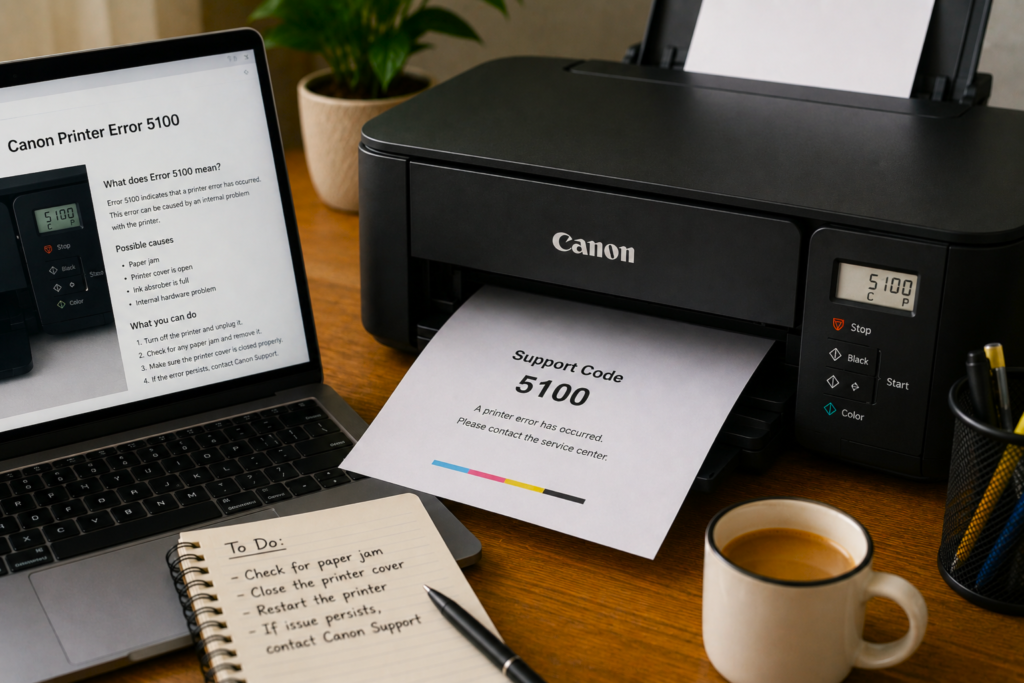
Your Canon PIXMA displays Support Code 5100, the control panel flashes, and the printer refuses to do anything until the error is cleared. It may have happened mid-print, right after a Windows 11 update ran, or seemingly out of nowhere. The screen message typically reads “A printer error has occurred” and refers you to this code.
Error 5100 is a carriage error — and despite looking like a serious hardware failure, the fix is often surprisingly simple. In many cases it’s a tiny smear of ink on a transparent plastic strip you’ve never heard of. This guide explains what’s happening, how a Windows 11 update can trigger a physical carriage error, and how to work through every fix in the right order. If you’re also dealing with Canon IJ Scan Utility not working after a Windows update, our guide on Canon IJ Scan Utility not working covers that separately.
What Is Canon Error 5100?
Canon error 5100 is a carriage error — the printer’s internal monitoring has detected that the ink cartridge carriage cannot complete its movement correctly. The carriage is the sliding assembly that holds the ink cartridges and travels back and forth across the printer during printing. For every print cycle, the carriage must be able to move freely from one end of its track to the other and return to a defined “home” position.
When the carriage is blocked, jammed, or when the sensor that tracks its position receives an incorrect reading, the printer flags error 5100 and stops all operation to prevent mechanical damage. The printer will not resume until the cause is cleared.
The error appears across a wide range of Canon PIXMA models including the MG series (MG2520, MG3600, MG3620), MX series (MX452, MX922), TR series (TR4720, TR4722, TR8620), TS series (TS5360, TS9120), and G series (G7020, G7080).
Why a Windows 11 Update Can Trigger a Physical Carriage Error
This connection confuses people understandably — error 5100 is a hardware error, so why would a Windows update cause it? The link is indirect but very real.
When a Windows 11 update runs — particularly a feature update or driver update — it can temporarily change how the system communicates with the printer. If a print job was in progress when the update disrupted the driver or print queue, the printer’s carriage may have stopped mid-sweep rather than completing its cycle and returning to the home position. A carriage parked mid-track triggers error 5100 on the next startup because the printer detects it isn’t in the expected home position.
Separately, a Windows 11 update that installs an outdated or incompatible Canon driver can cause jobs to stall mid-print repeatedly — which over time increases the frequency of carriage parking failures that surface as error 5100.
What Causes Canon Error 5100
- Carriage stopped mid-track — the most common post-update cause; the carriage isn’t blocked, it simply wasn’t allowed to complete its cycle and park at home
- Physical obstruction in the carriage path — a scrap of torn paper, a piece of packaging material, or a foreign object lodged in the carriage track prevents movement
- Dirty or smeared encoder strip — the transparent plastic timing strip that runs horizontally behind the cartridges has a smear of ink, grease, or debris on it; the position sensor misreads the strip and reports a carriage fault
- Ink cartridge not fully seated — a cartridge that hasn’t clicked fully into its slot prevents the carriage from parking in its correct home position
- Ink on the carriage rail or inside the printer — a leaking cartridge can deposit ink inside the printer that physically impedes carriage movement
- Worn or bent carriage rail — on heavily used printers, the rail the carriage slides on can develop friction points or minor bending that cause the carriage to stall
- Failed carriage motor or gear — less common, but the motor or gear that drives carriage movement can fail, producing error 5100 that doesn’t respond to any physical cleaning or reset
How to Fix Canon Error 5100 — Step by Step
Fix 1: Perform a Proper Power Cycle
This is the correct first step for every error 5100 — not pressing the power button, but a complete disconnection from the wall. When the carriage is stuck mid-track from a stalled print job (the most common post-update scenario), a proper power cycle allows it to reset and home itself on the next startup.
- If the printer is showing error 5100, press the Stop/Reset button once to acknowledge the error.
- Press the printer’s power button to turn it off.
- Unplug the power cord from the wall outlet — not just from the printer, and not via a surge protector. Pull from the wall.
- Leave it unplugged for a full 60 seconds.
- Close all printer covers and lids before plugging back in.
- Reconnect the power cord to the wall, then press the power button to turn the printer on.
- Listen and watch — the carriage should move across its full range and return to the home position during startup. If it does and error 5100 doesn’t return, the fix was a carriage reset. Test print a page.
If the error returns on the next startup, the carriage is physically blocked or the encoder strip needs cleaning — continue below.
Fix 2: Check and Clear the Carriage Path
With the printer powered off and unplugged, inspect the full carriage path for any physical obstruction. Even a scrap of paper no larger than a thumbnail can stop the carriage and trigger error 5100 — and these fragments are easy to miss because they often end up in the far corners of the carriage track where they’re not visible at a glance.
- Unplug the printer from the wall.
- Open the front cover or top lid that gives access to the ink cartridge area.
- Use a flashlight to illuminate the full length of the carriage track — check both the far left and far right ends where the carriage parks, as well as the area directly around the cartridges.
- Look for torn paper fragments, pieces of label backing, pieces of tape or packaging, or any other foreign material.
- Remove any debris carefully with your fingers or tweezers. Do not use compressed air into the carriage area — this can push debris further inside the mechanism.
- With the printer still unplugged, gently push the carriage by hand from one end of its track to the other. It should slide smoothly with light resistance. If it grinds, catches, or stops at any point, there’s a physical obstruction that needs locating.
- Close the covers, reconnect, and power on.
Fix 3: Reseat the Ink Cartridges
An ink cartridge that isn’t clicked fully into its slot changes the carriage’s physical profile enough that it can’t park correctly in the home position — producing error 5100 without any other obvious symptom. This is particularly common after a cartridge replacement where the new cartridge was pressed in but didn’t fully engage the locking mechanism.
- With the printer powered on, open the ink cartridge access door.
- Wait for the carriage to move to the cartridge access position in the centre (if it will).
- Press down on each cartridge to release it, then remove it completely.
- Check the cartridge for visible damage or signs of ink leaking from the bottom contacts. If a cartridge has been leaking, clean the corresponding carriage slot contacts with a dry lint-free cloth.
- Reinsert each cartridge firmly, pressing until you feel and hear it click into place.
- Close the access door and allow the printer to complete its startup cycle.
Fix 4: Clean the Encoder Strip
This is the single most widely confirmed fix for Canon error 5100, particularly for errors that recur or that appear without any obvious physical obstruction. The encoder strip is a thin, transparent plastic ribbon that runs horizontally across the printer behind the ink cartridges. The carriage’s position sensor reads markings on this strip to know exactly where the carriage is at every moment.
When the strip gets a smear of ink, grease, or fine debris on its surface, the sensor can’t read the markings correctly — and the printer interprets this as a carriage positioning failure, triggering error 5100. The strip is clear and narrow, easy to miss, and almost never mentioned in basic troubleshooting guides despite being the root cause in a significant number of cases.
To clean the encoder strip:
- Power off the printer and unplug it from the wall.
- Open the front cover to access the carriage area.
- Allow the carriage to remain where it is (do not force it to move while the printer is unplugged — you’ll clean it in place or with the carriage gently slid aside).
- Locate the encoder strip — it’s the thin, clear plastic ribbon approximately 3–5mm wide that runs horizontally, parallel to and slightly behind the carriage rail. Look carefully — it’s almost invisible at first glance.
- Using a clean lint-free cloth very lightly dampened with distilled water, gently wipe along the full length of the encoder strip in a single direction. A cotton swab works well for reaching areas behind the carriage. Do not scrub back and forth.
- Follow with a dry lint-free cloth pass to remove any moisture.
- Allow the strip to dry completely — approximately 2–3 minutes — before closing the cover and powering on.
Fix 5: Check for Ink Leakage or Debris Inside the Printer
A cartridge that has leaked — or one that was installed with the protective seal still partially on — can deposit wet or dried ink inside the carriage mechanism. This is more likely after a printer that’s been sitting unused for a period, where ink can dry in unexpected places.
- With the printer unplugged and covers open, use a flashlight to inspect the area beneath and around the cartridge slots.
- Look for dried ink deposits, smears, or residue on the carriage body, the area beneath the cartridges, or the carriage track surface.
- Use a lint-free cloth very lightly dampened with distilled water to carefully wipe away any dried ink from the carriage body — avoid the encoder strip and avoid getting moisture near the electrical contacts on the cartridge slots.
- Once cleaned, allow to dry fully before powering on.
Fix 6: Update or Reinstall the Canon IJ Printer Driver
Once the physical carriage issue is resolved, addressing the Windows 11 driver is the step that prevents the same trigger from causing error 5100 again. A Canon IJ driver that became incompatible after a Windows 11 update is the underlying reason why the print job stalled in the first place — and leaving an outdated driver in place means the cycle is likely to repeat.
- Go to Settings > Bluetooth & devices > Printers & scanners.
- Click your Canon PIXMA printer and select Remove device.
- Open Device Manager, expand Printers, right-click any Canon IJ entry, and select Uninstall device — tick the driver removal box if offered.
- Restart your PC.
- Visit Canon’s official support website (support.usa.canon.com for US users, or your regional Canon support site), search for your exact PIXMA model, and download the latest full driver package for Windows 11.
- Install as administrator (right-click the installer > Run as administrator).
- Print a test page to confirm both the driver and carriage are working correctly.
Fix 7: Clear the Print Queue and Reset the Spooler
If the error 5100 appeared during a print job that was stalled by a Windows update, corrupted spool files from that failed job may remain in the queue. These can cause the same stall to repeat on the next print attempt, potentially putting the carriage in the same stuck position again.
- Right-click the Start button and open Windows Terminal (Admin) or Command Prompt (Admin).
- Type each command and press Enter after each:
net stop spooler
del /Q /F /S "%systemroot%\System32\spool\PRINTERS\*.*"
net start spooler
- Restart your Canon printer.
- Send a fresh test print.
Fix 8: Update Canon Firmware
Canon periodically releases firmware updates that address carriage movement calibration, sensor sensitivity, and compatibility with Windows 11 changes. If error 5100 appeared after a recent Windows update and persists even after physical cleaning, a firmware update for your PIXMA model may include specific fixes for the issue.
- Visit Canon’s official support website and search for your exact PIXMA model.
- Look for a Firmware or Software Updates section and check whether a newer firmware version is available.
- Download and follow Canon’s instructions for your specific model — firmware update methods vary across PIXMA series.
- Never turn the printer off during a firmware update — allow it to complete and restart fully before testing.
Fix 9: Run the Windows Printer Troubleshooter
For cases where error 5100 was clearly triggered by a Windows update rather than a physical obstruction, the built-in Windows printer troubleshooter can detect and resolve driver misconfigurations and stalled print service states automatically.
- Press Windows + S, type Get Help, and open the app.
- Search for “fix printer problems.”
- Follow the guided troubleshooting steps — it will check your Canon printer’s driver, print queue, and service state.
- Apply any suggested fixes and restart both your PC and the printer afterward.
When to Stop DIY Troubleshooting
Most error 5100 cases resolve through the steps above. Stop troubleshooting and consider professional repair when:
- The carriage physically will not move at all when pushed gently by hand — this suggests a mechanical failure in the carriage motor, drive belt, or gear train
- The carriage moves but grinds, stutters, or catches at a specific point on the track — suggesting a bent rail or damaged carriage mechanism
- Error 5100 returns immediately after every reset even after clearing the path, cleaning the encoder strip, and reseating cartridges
- The printer is within its warranty period — in this case, Canon’s warranty service covers mechanical carriage faults without charge
Tips to Prevent Error 5100 From Recurring
- Keep the Canon IJ driver updated. An outdated driver on Windows 11 is the software-side reason carriage errors appear after Windows updates — a current driver handles system changes more gracefully and is less likely to stall mid-print.
- Print regularly, even when not needed. The encoder strip accumulates fine ink mist with every print job, and a printer that sits unused for weeks is more likely to have ink dry on the strip in a way that causes sensor misreads. A short test print every week or two keeps the mechanism exercised.
- Always remove paper carefully. Paper jams and torn paper fragments in the carriage area are the most preventable cause of error 5100. Removing jammed paper slowly and confirming no scraps remain is a two-minute check that avoids hours of troubleshooting later.
- Use genuine Canon cartridges or high-quality compatibles. Cartridges with poor seals are more likely to leak, depositing ink inside the carriage mechanism. Third-party cartridges with lower-quality casings are disproportionately represented in reported ink-in-carriage error cases.
- Check carriage movement monthly if the printer is heavily used. On high-usage PIXMA models, a quick visual check of the encoder strip during cartridge replacement takes under a minute and catches buildup before it becomes a carriage error.
Wrapping Up
Canon error 5100 looks alarming but follows a clear diagnostic path. A proper power cycle, a thorough carriage path check, reseated cartridges, and a clean encoder strip resolve the error in the large majority of cases — including those triggered by a Windows 11 update disrupting a print job mid-cycle. After fixing the physical side, updating the Canon IJ driver closes the software loop and reduces the chance of the same update-triggered stall causing a repeat.
The encoder strip cleaning in particular is worth knowing about — it’s the most consistently confirmed fix across hundreds of real user reports and is rarely mentioned in basic troubleshooting advice. Take the fixes in order, test after each one, and error 5100 should clear without requiring a service call in most cases.
Frequently Asked Questions
What does Canon error 5100 mean?
Canon error 5100, also displayed as Support Code 5100, indicates a carriage error — the ink cartridge carriage assembly that moves across the printer during printing is stuck, blocked, or cannot reach its home position. The printer stops all operation when this error is detected to prevent mechanical damage. The cause is usually a physical obstruction in the carriage path, a dirty encoder strip causing the position sensor to misread, or a cartridge not seated correctly — rather than a serious hardware failure.
Why did a Windows 11 update cause a carriage error?
A Windows 11 update that changes the printer driver or disrupts the print queue can stall an active print job mid-cycle. When this happens, the carriage stops mid-track rather than completing its sweep and returning to the home park position. On the next startup, the printer detects the carriage isn’t where it should be and flags error 5100. The carriage itself isn’t broken — it just needs to complete its homing cycle, which a proper power cycle (unplugged from the wall for 60 seconds) typically allows it to do.
What is the encoder strip and why does it cause error 5100?
The encoder strip is a thin, transparent plastic ribbon approximately 3–5mm wide that runs horizontally behind the ink cartridges. The carriage’s internal position sensor reads fine markings on this strip to know exactly where the carriage is at every moment during printing. When ink mist, dried ink, or grease smears the strip surface, the sensor can’t read the markings correctly — and the printer interprets the incorrect position readings as a carriage fault, triggering error 5100. Cleaning the strip with a lint-free cloth lightly dampened with distilled water removes the obstruction and restores correct position sensing.
Can I clean the carriage rail to fix error 5100?
No — and doing so can worsen the error. The carriage rail has a factory-applied grease coating that allows the carriage to slide smoothly. Wiping this grease off with a cloth or solvent creates friction that causes the carriage to stall more easily, not less. The component to clean for error 5100 is the encoder strip — the thin clear plastic ribbon parallel to the rail. If you’re uncertain which is which, the encoder strip is transparent plastic with fine markings; the carriage rail is a smooth metal bar.
Error 5100 cleared once but came back after a few prints — why?
A recurring error 5100 that clears temporarily but returns after a few print cycles suggests the encoder strip has buildup that wasn’t fully removed during initial cleaning, or that an ink cartridge is leaking and recontaminating the strip with each print job. Repeat the encoder strip cleaning more thoroughly — dampen the cloth very slightly more and work slowly along the full length of the strip. Also remove all cartridges and inspect them for leaks before reinstalling. If a cartridge is seeping ink from its body, replacing it will prevent the cycle from repeating.
Should I try to move the carriage manually when error 5100 appears?
Only with the printer powered off and unplugged, and only with gentle pressure. With the printer unplugged and covers open, you can gently slide the carriage left and right to test whether it moves freely — smooth movement with light resistance is normal. This is useful for confirming whether a physical obstruction is present and for clearing the carriage away from an area you need to clean. Never force the carriage if it catches or grinds at a specific point, as this can damage the carriage mechanism or encoder strip.
Disclaimer: This article is provided for informational and educational purposes only. The fixes and procedures described are based on general knowledge of Canon PIXMA printer mechanisms and publicly reported user experiences. Results may vary depending on your specific printer model and condition. We are not affiliated with Canon Inc. Always ensure the printer is unplugged before accessing any internal components, and contact Canon’s official support or an authorised repair service for mechanical failures beyond what can be addressed through the steps in this guide.