
This guide is for informational purposes only. We are not affiliated with any brand mentioned.
▶ Quick Summary — Epson Printer Queue Stuck or Won’t Delete
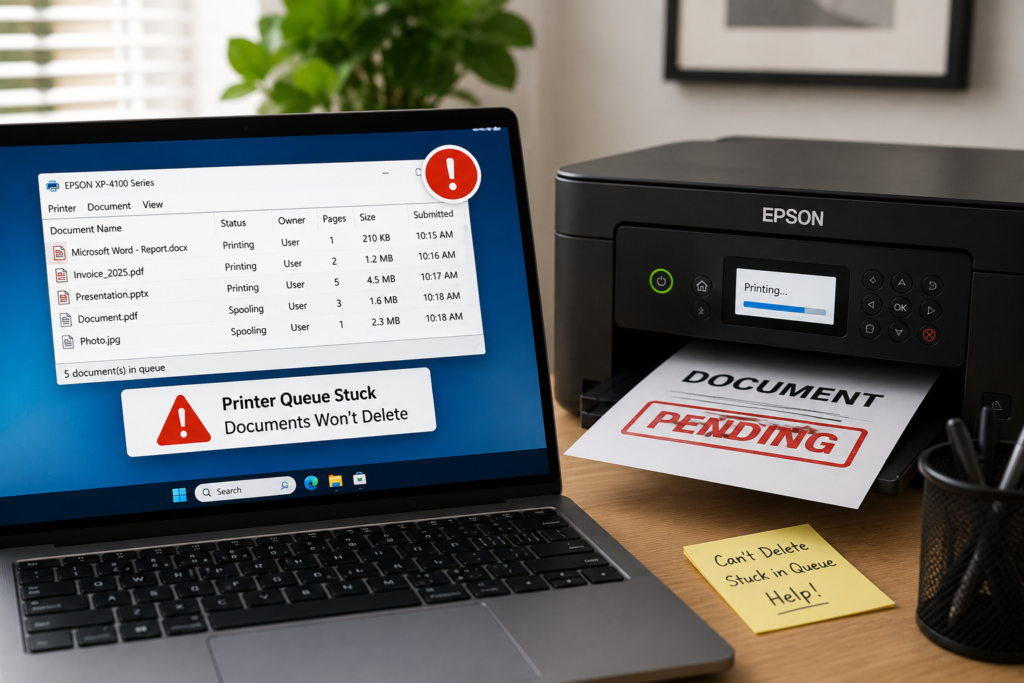
- What’s happening: A document is stuck in the Epson print queue with a status of “Printing,” “Deleting,” or “Error” — and nothing behind it will print either
- Why Cancel doesn’t work: The Print Spooler service is frozen — when it can’t process the cancel command, clicking the button does nothing
- Fastest fix: Restart the Print Spooler service via
services.msc— this unfreezes the queue in most cases - If restart isn’t enough: Stop the spooler, delete all files in
C:\Windows\System32\spool\PRINTERS, then restart the spooler - After clearing the queue: Restart both your PC and the Epson printer before sending a new job
- Recurring issue: Usually points to an outdated or corrupted Epson driver — a clean reinstall fixes it permanently
A document gets stuck in the Epson print queue — and now nothing will print. The status says “Printing” or “Deleting” but nothing ever happens. You right-click and hit Cancel, and the job just sits there ignoring you. Meanwhile, every other document you try to send piles up behind it, all frozen.
This is one of the most common Epson printing problems on Windows, and it’s fixable without reinstalling anything in the majority of cases. The cause is almost always a frozen Windows Print Spooler service — and once you understand that, the solution becomes straightforward. This guide walks through every fix, from a simple queue cancel to clearing the spool folder entirely, in the right order.
Why Epson Print Jobs Get Stuck and Won’t Delete
The Print Spooler is a Windows background service that acts as the traffic controller for everything you print. When you send a document to your Epson printer, it doesn’t go directly to the hardware — Windows holds it in a temporary folder called the spool folder, processes it, and delivers it in sequence. The Spooler manages this entire process.
When the Spooler freezes or crashes mid-job — due to a corrupted document, a lost printer connection, a driver conflict, or a Windows update that disrupted the service — it gets stuck in a state where it can neither send the job forward nor process your cancellation request. The job stays visible in the queue with a frozen status, Cancel does nothing because the service handling the command is the same one that’s frozen, and every new print job you send joins the stuck queue behind it.
The most common specific triggers include:
- A large or image-heavy document that overwhelmed the spooler’s processing capacity mid-job
- The Epson printer going offline or losing its network connection mid-print, leaving the spooler with a job it can no longer deliver
- A corrupted
.splor.shdspool file that the spooler can’t process or remove - Running printer maintenance — such as nozzle cleaning — which pauses communication between Windows and the printer, sometimes leaving a partially-sent job orphaned in the queue
- An outdated or partially corrupted Epson driver that the Windows Spooler service can’t interface with correctly after a Windows 11 update
Step 1: Try the Queue’s Cancel Option First
Start here even though it often fails when the spooler is frozen — occasionally the job is stuck for a simpler reason and this clears it immediately.
- Open Settings > Bluetooth & devices > Printers & scanners.
- Click your Epson printer and select Open print queue.
- Right-click the stuck job and select Cancel, then confirm when prompted.
- Wait 30 seconds. If the job clears, you’re done — restart the printer before sending a new job.
- If the job doesn’t move or returns to its stuck status, proceed to Fix 1 below.
How to Fix Epson Print Queue Stuck — Complete Fix Guide
Fix 1: Restart the Print Spooler Service
This is the most reliable fix for a frozen Epson print queue and works in the majority of cases. Restarting the Spooler unfreezes it, releases the stuck job, and allows normal queue operation to resume.
- Press Windows + R, type
services.msc, and press Enter. - Scroll the list and find Print Spooler.
- Right-click it and select Restart.
- Wait for the restart to complete — it takes about 10–15 seconds.
- Go back to the print queue and check whether the stuck job has cleared.
- If the job is gone, restart your Epson printer and send a test page before printing anything else.
At this point, most stuck Epson queues clear completely. If the job is still there, the spool file itself is corrupted and the next fix handles that.
Fix 2: Stop the Spooler and Clear the Spool Folder Manually
When restarting the Spooler isn’t enough, it’s because the corrupted spool file is still sitting on disk — and the Spooler picks it back up every time it restarts. Deleting the spool files while the service is stopped removes the source of the problem entirely.
- Open services.msc again (Windows + R, type
services.msc). - Find Print Spooler, right-click it, and select Stop. Leave this window open.
- Open File Explorer and navigate to:
C:\Windows\System32\spool\PRINTERS - Select all files inside this folder and delete them. Do not delete the PRINTERS folder itself — only its contents.
- Return to services.msc, right-click Print Spooler, and select Start.
- Restart your PC and Epson printer.
- Send a test print to confirm the queue is clear and working.
.spl and .shd files in the PRINTERS folder are temporary spool data for queued jobs. Deleting them permanently removes all queued print jobs — including any waiting jobs you may have wanted to print. Make a note of any important jobs before clearing the folder so you can resend them after.Fix 3: Clear the Queue Using Command Prompt (Faster Method)
If you’d rather clear the queue through a single sequence of commands rather than navigating between windows, this approach does the same thing as Fix 2 in fewer steps:
- Right-click the Start button and select Windows Terminal (Admin) or Command Prompt (Admin).
- Type each of the following commands, pressing Enter after each one:
net stop spooler
del /Q /F /S "%systemroot%\System32\spool\PRINTERS\*.*"
net start spooler
- Close the terminal window, restart your Epson printer, and test printing.
The three commands stop the spooler, delete all spool files forcefully without prompting for confirmation, then restart the spooler. The entire sequence takes under 30 seconds.
Fix 4: Restart Both the Printer and the PC
After clearing the spool folder, this step matters more than it looks. A full restart of both devices resets the connection state between Windows and the Epson printer, clears any cached error state in the printer’s memory, and ensures the Spooler re-establishes a clean communication channel.
- Fully shut down your Windows 11 PC — Start > Shut Down.
- Turn off the Epson printer using its power button and unplug it from the wall.
- Wait 30 seconds.
- Plug the printer back in, power it on, and let it complete its startup.
- Start your PC and test printing once both devices are fully ready.
Fix 5: Check the Epson Printer’s Connection
A queue that keeps getting stuck — particularly with a status of “Error” rather than “Printing” — often means the Spooler is trying to deliver a job to a printer it can’t reach. The spool file piles up faster than the connection can clear it.
- For USB-connected printers: Try a different USB port on your PC and check the cable. A USB 3.0 port (blue) sometimes behaves differently with Epson drivers after a Windows update — try a USB 2.0 port as a quick test.
- For Wi-Fi-connected printers: Confirm the printer and PC are on the same network. If your router broadcasts separate 2.4GHz and 5GHz bands with different names, verify both are on the same one. Check that the Epson printer’s IP address hasn’t changed since it was added to Windows — a changed IP means the Spooler is sending jobs to an address the printer no longer has.
- In Device Manager: Expand Printers and confirm the Epson entry doesn’t have a yellow warning icon. A yellow exclamation mark indicates a driver issue preventing the Spooler from communicating with the printer.
Fix 6: Set the Print Spooler Service to Automatic Startup
If the Print Spooler keeps stopping on its own — and the queue freezes every time it does — the service’s startup type may have been changed from Automatic to Manual or Disabled, perhaps during a Windows update. This means the service doesn’t restart when Windows starts, leaving the queue stuck after any restart.
- Open
services.msc. - Double-click Print Spooler to open its Properties.
- On the General tab, check the Startup type dropdown.
- If it’s set to anything other than Automatic, change it to Automatic.
- Click Apply, then Start if the service isn’t currently running.
- Click OK and close the window.
Fix 7: Reinstall the Epson Printer Driver
If the queue gets stuck repeatedly rather than just once, the underlying cause is almost always a driver issue — either corrupted driver files, a partial installation, or an outdated driver that isn’t compatible with the current version of Windows 11. A clean reinstall addresses all three possibilities.
- Go to Settings > Bluetooth & devices > Printers & scanners, click your Epson printer, and select Remove device.
- Open Device Manager (right-click Start > Device Manager), expand Printers, right-click any remaining Epson entry, and select Uninstall device — tick the box to remove driver software if offered.
- Restart your PC.
- Visit Epson’s official support website, search for your exact printer model, and download the latest full driver package for Windows 11.
- Run the installer as administrator (right-click the installer file and select Run as administrator).
- Add the printer back if it doesn’t appear automatically, then test print.
Fix 8: Run the Windows Printer Troubleshooter
For users who’d prefer an automated diagnostic before making manual changes, Windows 11’s built-in troubleshooter covers a number of queue and Spooler-related issues and can sometimes resolve them without manual intervention.
- Press Windows + S, type Get Help, and open the app.
- Search for “fix printer” or “printer problems.”
- Follow the automated steps — the troubleshooter will check your Spooler service, detect stuck jobs, and attempt to clear them.
- Restart after the troubleshooter completes and test printing.
What to Do After Clearing the Queue
Once the stuck job is gone and printing is working again, a few quick steps help prevent the same thing from happening again with your next job:
- Restart the Epson printer before sending any new jobs — the printer’s internal memory may still hold a reference to the failed job, and a fresh start ensures a clean slate.
- Send a short test print first — a single-page document — before sending the full job that got stuck. This confirms the queue and driver are both working cleanly before committing a large document.
- Check the printer is set as the default — go to Settings > Bluetooth & devices > Printers & scanners, click your Epson, and click Set as default if it isn’t already. Jobs sometimes go to a different printer entry after a restart, which appears as a stuck job in the correct printer’s queue.
Tips to Prevent Stuck Jobs From Recurring
- Keep the Epson driver up to date. Epson releases driver updates that improve Print Spooler compatibility and handle common job-freeze scenarios more gracefully. Checking Epson’s support site after any significant Windows 11 update is a reliable habit.
- Don’t send print jobs while the printer is in a maintenance cycle. Nozzle cleaning, alignment printing, and ink charging cycles temporarily interrupt the connection between Windows and the printer. Sending a document during this window is a common reason jobs get orphaned in the queue.
- Keep paper and ink stocked. A printer that runs out of paper or ink mid-job pauses and holds the current job in the queue. On some Epson models, that hold can freeze the Spooler if the printer waits too long for a user response.
- Use a direct USB connection for large or image-heavy files. Wi-Fi connections that drop mid-print leave the Spooler with no way to deliver or release the job. USB eliminates wireless reliability as a variable for important or large print jobs.
Wrapping Up
An Epson print queue that won’t clear or delete is almost always a Print Spooler problem rather than anything wrong with the printer itself. Restarting the Spooler via services.msc resolves most cases in under a minute. When the spool folder needs clearing, the command-line method does it in three commands. And if the problem keeps recurring, a clean Epson driver reinstall addresses the root cause and typically ends the cycle for good.
Work through the fixes in order, restart both your printer and PC after clearing the queue, and normal printing should resume cleanly without needing to recover any settings or files.
Frequently Asked Questions
Why won’t my Epson print job delete even when I click Cancel?
Clicking Cancel in the print queue sends a cancellation request to the Print Spooler service — but if the Spooler itself is frozen, it can’t process that request any more than it can process the original print job. The Cancel button is effectively sending a message to a service that isn’t responding. Restarting the Spooler via services.msc unfreezes it, which then allows the cancellation to go through or clears the job automatically as part of the restart.
Will deleting the spool folder files lose any of my important documents?
The spool folder contains temporary copies of print jobs, not the original document files. Deleting the spool files removes the queued print jobs — meaning you’ll need to resend them — but it does not affect the original document stored on your computer in any way. Your Word files, PDFs, photos, and any other files remain completely untouched.
Why does the Epson queue keep getting stuck every time I print?
A recurring stuck queue almost always points to a driver issue — either corrupted driver files or an outdated driver that doesn’t handle Print Spooler communication correctly on the current version of Windows 11. A single stuck job that resolves after clearing the spool folder is usually a one-off. A queue that freezes on multiple consecutive print jobs, particularly after the spool folder has been cleared, is a strong signal that the driver needs a full clean reinstall.
The print queue shows “Deleting” forever — is that different from stuck?
A job stuck on “Deleting” is the same underlying issue — the Print Spooler is frozen mid-process and can’t complete the deletion. The status label (“Printing,” “Deleting,” “Error”) reflects what the Spooler was trying to do when it froze, not a different type of problem. The fix is identical: restart or stop/start the Spooler service. If the “Deleting” status persists through a Spooler restart, clearing the spool folder manually removes the associated spool files and forces the job out of the queue.
My Epson queue got stuck during printer maintenance — why does this happen?
During printer maintenance cycles — nozzle cleaning, ink charging, alignment — the Epson printer temporarily suspends its normal print communication with Windows. If a print job was sent or was mid-delivery when maintenance began, the Spooler can get stuck waiting for a printer that’s busy with internal maintenance and not accepting new data. The printer completing its maintenance cycle and the Spooler restarting together usually clears this, but if the job remains stuck afterward, clearing the spool folder removes the stalled data cleanly.
How do I find the spool folder if I can’t navigate to it in File Explorer?
If the PRINTERS folder doesn’t appear in a normal File Explorer browse, it may be because Windows hides system folders by default. In File Explorer, click View > Show > Hidden items to make them visible. Alternatively, the easiest method is to paste the path directly into the File Explorer address bar: type C:\Windows\System32\spool\PRINTERS and press Enter — this takes you directly to the folder regardless of visibility settings.
Disclaimer: This article is provided for informational and educational purposes only. The fixes and procedures described are based on general knowledge of Windows print queue behavior and publicly reported user experiences with Epson printers. Results may vary depending on your specific printer model, driver version, and Windows configuration. We are not affiliated with Seiko Epson Corporation or Microsoft Corporation. Always ensure important print jobs are saved in their original file locations before clearing the spool folder.