
This guide is for informational purposes only. We are not affiliated with any brand mentioned.
▶ Quick Summary — HP Printer Disappears From Network on Windows 11
- What’s happening: The HP printer completely vanishes from the Windows printers list every few days — not showing as offline, but gone entirely until you restart or re-add it
- Root cause (most common): Your router assigns the HP printer a new IP address every few days, and Windows can’t find it at the old address — so it removes it
- Fastest permanent fix: Assign the printer a static IP through your router’s DHCP reservation, then switch from WSD port to Standard TCP/IP port in Windows
- Second most common cause: Windows power management settings turning off your network adapter or USB port to save energy, breaking the printer connection
- Known Windows 11 issue: Microsoft’s Q&A forum has confirmed this as a recurring Windows 11 behavior affecting multiple printer brands — not unique to HP
- HP Print and Scan Doctor was retired May 2025: Use the HP App’s built-in “Diagnose & Fix” tool instead for automated diagnostics
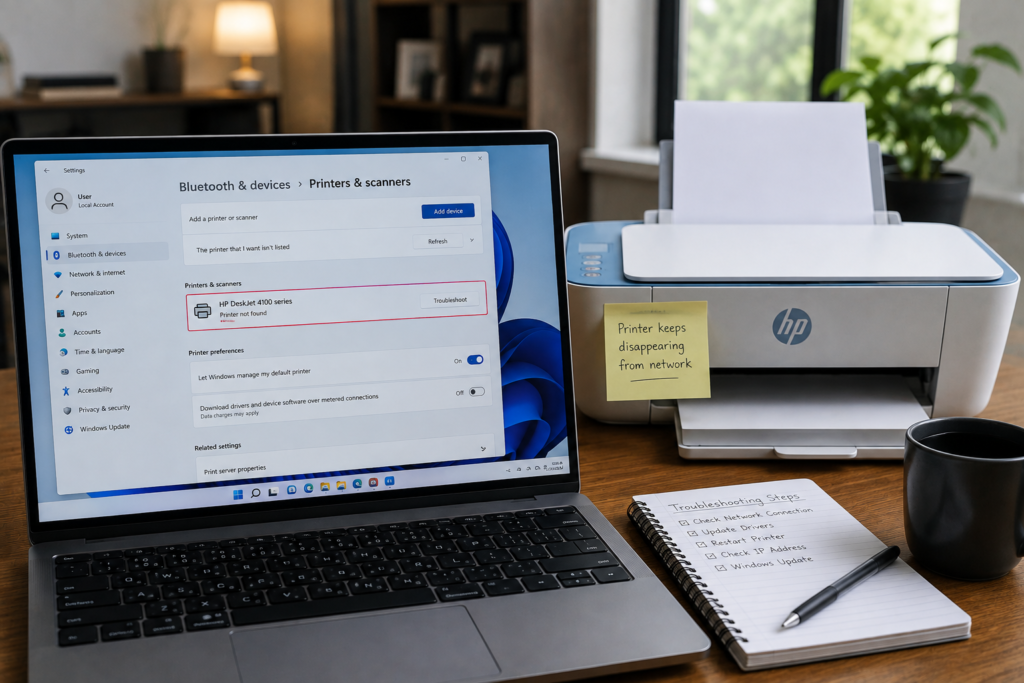
You print something, everything works perfectly. A few days later you go to print again and your HP printer has completely vanished — not showing as offline, not throwing an error, just gone from your printer list entirely. The default printer has switched to “Save as PDF” as if the HP was never set up. You restart your PC and it comes back. Then a week later, the whole thing repeats.
This is genuinely one of the more frustrating HP printer problems on Windows 11, precisely because it keeps coming back. Each individual disappearance is easy to fix — restart, re-add, done — but the cycle resumes every few days unless the underlying cause is addressed. This guide explains what’s actually causing it and how to stop it from happening again.
Why Does the HP Printer Keep Disappearing From Windows 11?
This isn’t a single problem with a single cause — it’s typically one of three separate things, and identifying which one applies to your setup is the key to fixing it permanently rather than just recovering each time.
Cause 1: The Printer’s IP Address Changes
Most home and office routers assign IP addresses dynamically through DHCP — meaning every device on the network gets a temporary address that can change when the router restarts, when the device reconnects, or after a set lease period. For printers, this is a problem.
When your HP printer is added to Windows over a network, Windows notes the printer’s IP address and uses it to communicate. If the router assigns the printer a different IP address a few days later, Windows is left searching for a device at an address that no longer exists. Rather than throwing an error indefinitely, Windows quietly removes the printer from the list. A restart forces Windows to rediscover the printer at its new address — which is why restarting temporarily fixes it.
Cause 2: Windows Power Management Disconnects the Network Adapter
Windows 11 has aggressive power management settings designed to conserve energy when the device is idle. One of those settings allows Windows to completely turn off your network adapter when it’s not actively being used. When this happens, any network-connected printer Windows was tracking through that adapter becomes unreachable — and Windows may remove it from the device list rather than wait for the connection to restore.
This cause is particularly common on laptops but also affects desktops, and it explains the specific pattern where the printer disappears during or after periods when the PC has been asleep or idle for a while.
Cause 3: The WSD Port Loses Track After Network Changes
When you add a network printer in Windows 11, it often gets added using a WSD (Web Services for Devices) port — a discovery protocol that lets Windows find printers automatically on the local network. WSD ports are dynamic by design: they re-discover the printer’s location each time they need to communicate. This works well when everything stays stable, but it fails silently when the printer’s IP changes, when the network briefly drops, or after a Windows update alters how WSD discovery works.
A WSD port that loses track of the printer causes the exact disappearing behavior users report — the printer entry is removed from Windows’ active device list, and it needs to be re-added or the PC restarted to trigger a fresh WSD discovery.
How to Fix HP Printer Disappearing From Network on Windows 11
The fixes below address each of the three causes above. Work through them in order — fixes 1 and 2 together solve the problem permanently for the vast majority of users.
Fix 1: Assign the HP Printer a Reserved (Static) IP Address
This is the single most effective long-term fix for a printer that keeps disappearing due to DHCP address changes. Reserving an IP address for the printer in your router settings means it always gets the same address every time it connects — which means Windows always knows exactly where to find it.
Step 1 — Find the printer’s MAC address:
The MAC address is a permanent unique identifier for the printer’s network hardware. You can find it by printing a network configuration page directly from the HP printer’s control panel — look under Settings > Network or press the Information button and select the network summary. It typically looks like A4:C3:F0:XX:XX:XX.
Step 2 — Reserve the IP in your router:
- Open a browser and enter your router’s admin address — usually
192.168.1.1or192.168.0.1. If neither works, check the label on the underside of your router. - Log in with your router admin credentials.
- Look for a section labelled DHCP Reservation, IP Reservation, Static DHCP, or Address Reservation — the exact label varies by router brand but is typically under LAN Settings or Connected Devices.
- Create a new reservation entry using the printer’s MAC address and assign it a fixed IP address — choose one outside your router’s normal DHCP range to avoid conflicts (for example, if your DHCP range is
192.168.1.100–200, use192.168.1.50). - Save the settings and restart your router.
With a reserved IP, the printer’s network address never changes — eliminating the primary reason Windows loses track of it.
Fix 2: Switch From a WSD Port to a Standard TCP/IP Port
After assigning a fixed IP to the printer, switching Windows from a WSD port to a Standard TCP/IP port locks in that fixed address as the permanent connection method. Instead of relying on WSD’s dynamic discovery (which can fail silently), Windows communicates directly with the printer at its known, fixed IP address every time.
- Go to Settings > Bluetooth & devices > Printers & scanners.
- Click your HP printer and select Printer properties.
- Go to the Ports tab.
- Look through the list of ports. Your printer is likely using a port labelled something like WSD- followed by a long string of numbers — this is the WSD port.
- Click Add Port, select Standard TCP/IP Port, and click New Port.
- Follow the wizard: enter the printer’s IP address (the fixed one you just reserved), give the port a clear name like
HP_Printer_192.168.1.50, and complete the wizard. - Back on the Ports tab, select the new TCP/IP port and click Apply.
- Print a test page to confirm the connection works through the new port.
Fix 3: Disable Network Adapter Power Management
This fix addresses the second major cause — Windows shutting off the network adapter during idle periods and breaking the printer connection. Disabling this specific power management setting keeps the adapter active and available at all times.
- Right-click the Start button and open Device Manager.
- Expand Network adapters.
- Right-click your active network adapter (for Wi-Fi, look for entries with “Wireless” or “Wi-Fi” in the name; for ethernet, look for entries with “Ethernet” or your adapter brand).
- Select Properties and go to the Power Management tab.
- Uncheck Allow the computer to turn off this device to save power.
- Click OK.
Repeat this for all network adapters in the list if you’re unsure which one your printer connects through.
Fix 4: Disable USB Selective Suspend (USB-Connected Printers)
For HP printers connected via USB rather than Wi-Fi, Windows’ USB Selective Suspend setting can put the USB port into a low-power state that makes the connected device unreachable — causing the printer to vanish from the device list just as effectively as a network issue.
- Press Windows + S, search for Edit power plan, and open it.
- Click Change advanced power settings.
- In the Power Options window, expand USB settings.
- Expand USB selective suspend setting.
- Set it to Disabled for both On battery and Plugged in.
- Click Apply and OK.
Fix 5: Disable the HP Printer’s Sleep or Deep Sleep Mode
HP printers enter a sleep state after a period of inactivity to conserve energy. Most models wake up quickly when a print job arrives, but some HP models — particularly older OfficeJet and ENVY series — can enter a deep sleep state that makes them unresponsive to WSD discovery polling. When Windows polls for the printer and gets no response, it may remove the device from the active list.
The sleep timeout and mode settings are typically accessible through the printer’s own control panel or its embedded web server (accessed by entering the printer’s IP address in a browser):
- Via printer control panel: Navigate to Setup > Power Management or Printer Settings > Energy Settings, and increase the sleep timeout or disable deep sleep where the option is available.
- Via embedded web server: Open a browser, enter the printer’s IP address, and navigate to Settings > Power Management to adjust sleep mode settings.
Extending the sleep timeout or disabling deep sleep keeps the printer responsive to Windows’ discovery attempts, preventing WSD from losing track of it.
Fix 6: Confirm the Print Spooler Is Set to Automatic Startup
The Print Spooler service is the Windows process that maintains printer connections and manages print jobs. If its startup type is set to Manual rather than Automatic — which can happen after certain Windows updates — it may not restart correctly after sleep or reboot, causing the printer to disappear from the devices list until the service manually starts again.
- Press Windows + R, type
services.msc, and press Enter. - Find Print Spooler in the list and double-click it.
- On the General tab, confirm Startup type is set to Automatic.
- If it’s set to Manual or Disabled, change it to Automatic, click Apply, then click Start if the service isn’t currently running.
- Click OK and close the window.
Fix 7: Reinstall the HP Driver and Re-Add the Printer Fresh
If the printer keeps disappearing despite fixing the IP address and port settings, a corrupted or outdated driver may be causing Windows to periodically fail to maintain the device entry. A clean reinstall rebuilds the connection from scratch.
- Go to Settings > Bluetooth & devices > Printers & scanners, click your HP printer, and select Remove device.
- Open Device Manager, expand Printers, right-click any HP entry, and select Uninstall device — check the box to remove driver software.
- Restart your PC.
- Visit HP’s official support website, search for your exact printer model, and download the latest full driver package for Windows 11.
- Install as administrator (right-click the installer > Run as administrator).
- When prompted to add the printer during setup, use the TCP/IP method and enter the printer’s reserved IP address — this ensures the fresh installation uses the stable port rather than WSD from the start.
Fix 8: Run SFC to Check for Corrupted System Files
Windows 11 forum users reporting printers disappearing — including in a thread on Microsoft’s own platform — have found that corrupted Windows system files can cause device entries to periodically drop from the printer list. The System File Checker (SFC) scan identifies and repairs these files automatically.
- Right-click the Start button and open Windows Terminal (Admin) or Command Prompt (Admin).
- Type the following and press Enter:
sfc /scannow
- Wait for the scan to complete — it typically takes 5–10 minutes.
- Read the result message. If it reports “Windows Resource Protection found corrupt files and repaired them,” restart your PC and monitor whether the printer stays in the device list.
- If the scan reports issues it could not repair, running
DISM /Online /Cleanup-Image /RestoreHealthbefore repeating the SFC scan can resolve deeper system file corruption.
Tips to Keep the HP Printer Visible on Your Network Long-Term
- Keep the printer powered on consistently. Fully unplugging the printer between uses forces it to request a new DHCP lease each time it reconnects, increasing the chance of an IP change even with a reservation in place. Leaving it in its normal standby or sleep state maintains the network connection more reliably.
- Restart your router monthly. Router reboots are a trigger for DHCP reassignment — doing this deliberately and on your schedule (such as during monthly maintenance) is more predictable than an unexpected router restart causing the printer to disappear at an inconvenient time.
- Keep the HP driver current. HP releases driver updates that improve Windows 11 network discovery compatibility. After major Windows updates especially, checking HP’s support site for a newer driver for your model takes only a few minutes.
- Use the HP App’s Diagnose & Fix instead of HP Print and Scan Doctor. The Doctor tool was retired in May 2025 — if it’s still on your system, removing it and switching to the HP App keeps your diagnostic tools current and avoids potential conflicts from deprecated software.
Wrapping Up
An HP printer that disappears from the network every few days is almost always traceable to one of two things: a changing IP address that Windows can no longer find, or power management settings that shut off the network connection during idle periods. Fixing the IP address through router DHCP reservation, switching to a Standard TCP/IP port, and adjusting the power management settings together address both causes — and the combination typically ends the disappearing cycle permanently.
The individual disappearances are easy to recover from, but the goal here is to stop them from happening in the first place. Once the IP is stable and the port is fixed, Windows holds the printer connection reliably through restarts, sleep cycles, and Windows updates without needing to be re-taught where the printer is every few days.
Frequently Asked Questions
Why does my HP printer disappear from Windows 11 but come back after a restart?
When Windows restarts, it runs a fresh network discovery scan and re-finds the printer at its current IP address — which is why restarting temporarily brings it back. The underlying problem is that the printer’s IP address changes between uses (due to DHCP reassignment), and Windows loses track of it between restarts when using a WSD port. Assigning the printer a fixed IP through router DHCP reservation and switching to a Standard TCP/IP port stops this cycle by ensuring the address never changes and Windows connects directly to a known location every time.
Is this a Windows 11 bug or an HP problem?
It’s both contributing. Microsoft’s Q&A forum has confirmed that printer disappearance is a known Windows 11 behavior affecting multiple printer brands — not just HP — suggesting a systemic issue with how Windows 11 manages network device discovery and retention. HP’s WSD-based network setup amplifies the problem by relying on dynamic discovery rather than a fixed connection. The combination of a Windows 11 issue and WSD’s inherent fragility with changing IPs is why HP users see this particularly often.
How do I know if my HP printer is using a WSD port or a TCP/IP port?
Go to Settings > Bluetooth & devices > Printers & scanners, click your HP printer, and select Printer properties. On the Ports tab, look at which port has a checkmark — if the port name starts with “WSD-” followed by a long alphanumeric string, you’re using a WSD port. A Standard TCP/IP port will typically show an IP address in its name or in the Port column. If you see WSD, switching to TCP/IP as described in Fix 2 is strongly recommended.
What replaced HP Print and Scan Doctor?
HP Print and Scan Doctor was retired on May 27, 2025. HP’s replacement is the Diagnose & Fix feature built into the HP App, which is available free from the Microsoft Store and from HP’s official website. It covers the same automated printer diagnostics and is now HP’s recommended first step for connectivity troubleshooting. If you still have HP Print and Scan Doctor installed, HP advises removing it to avoid potential software conflicts.
Can power management settings really cause the printer to disappear completely?
Yes — and it’s one of the less obvious causes. When Windows turns off the network adapter to save power during an idle or sleep period, it effectively disconnects from the network entirely. Any network device Windows was tracking — including the HP printer — becomes unreachable. Depending on how long the adapter was off and how Windows re-establishes the connection on wake, the printer entry may be removed from the devices list rather than simply marked offline. Disabling “Allow the computer to turn off this device to save power” in Device Manager under the network adapter’s Power Management tab prevents this.
My HP printer keeps disappearing but only at certain times of day — what causes that?
A time-of-day pattern often points to your router’s DHCP lease renewal cycle. DHCP leases typically expire and renew every 24 hours, and the renewal moment is when the printer’s IP address can change if it hasn’t been reserved. Alternatively, it can point to an automated router restart scheduled by your ISP at a specific time overnight. Checking your router’s logs can confirm which applies — and assigning a DHCP reservation for the printer resolves both scenarios.
Disclaimer: This article is provided for informational and educational purposes only. The fixes and procedures described are based on general knowledge of Windows 11 network behavior and publicly reported user experiences including confirmed Microsoft community reports. Results may vary depending on your router model, network configuration, HP printer model, and Windows version. We are not affiliated with HP Inc. or Microsoft Corporation. Always back up your printer configuration before making changes to router DHCP settings.